
Important: Deleting a user removes the user permanently from the Portal. If you do not want to permanently delete a user, consider deactivating the user instead. Please use the guide below:
Within this article:
• Bulk Delete
• District Accounts
• School Accounts
Bulk Delete
Important: This method will delete all students and teachers. If you would like to delete only students, only teachers, or only classes, use the methods below based on your account type:
1. Login to the Administrator Portal
2. Click Users at the top of the page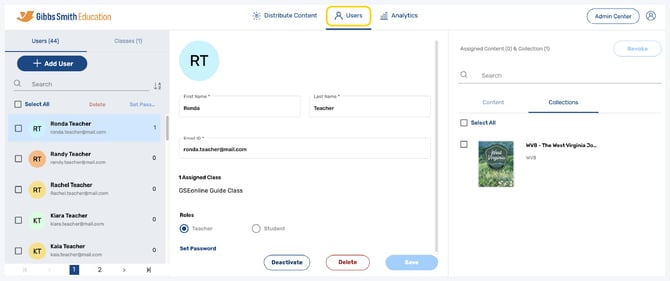
3. Click a checkbox next to users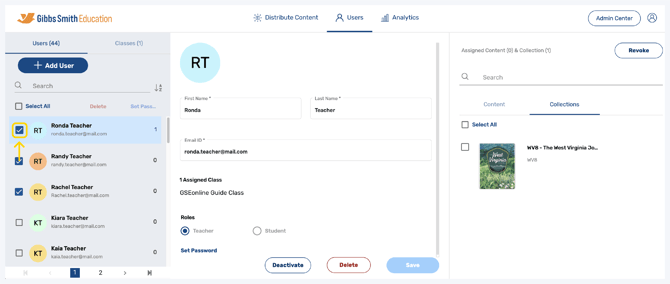
4. Click Delete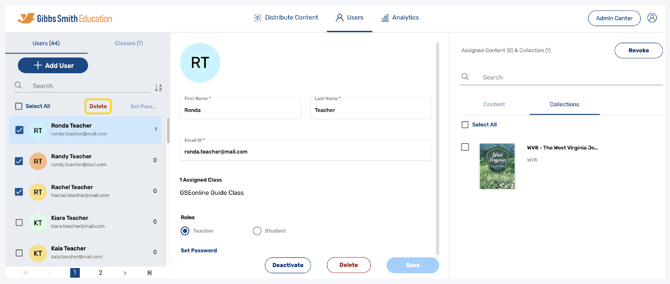
5. Choose whether to delete the selected users or all created users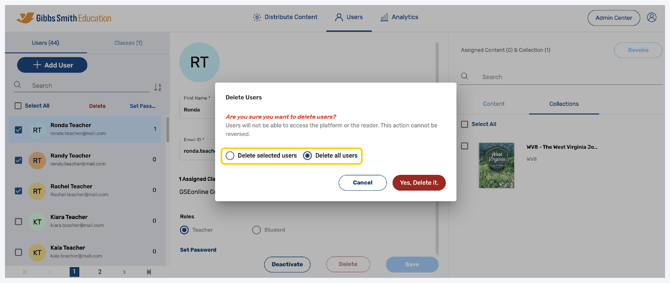
6. Click Yes, Delete it.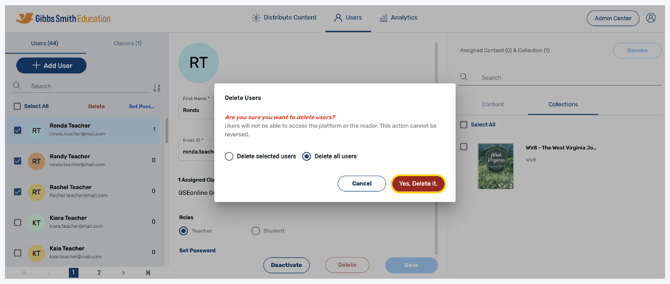
7. Users will be deleted
District Accounts
1. Login to a District Level account in the Administrator Portal
2. Click Schools at the top of the page
Note: If you do not see a Schools option, you may be logged into a School account
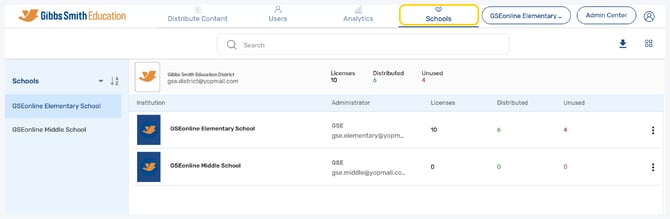
3. Locate the school you would like to bulk delete users for from the list or by using the search feature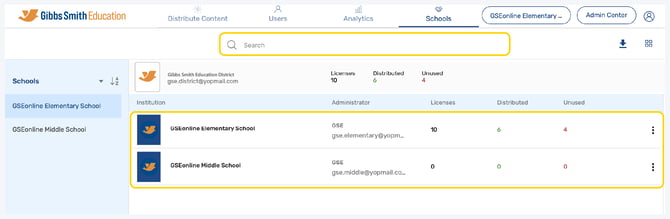
4. Click the More Options icon in the far right of the row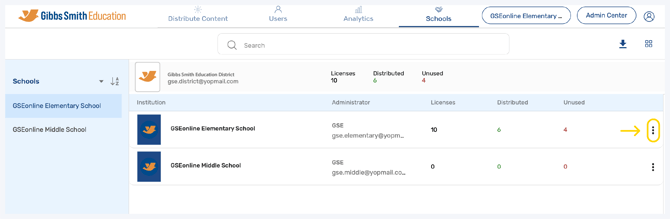
5. Click Bulk Delete Users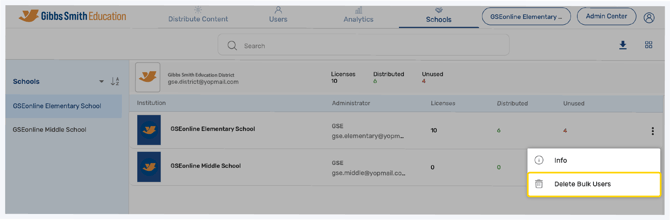
6. Select which users or classes you would like to delete and click Next
7. Click Proceed
8. All selected users or classes will be deleted
School Accounts
1. Click Admin Center at the top of the page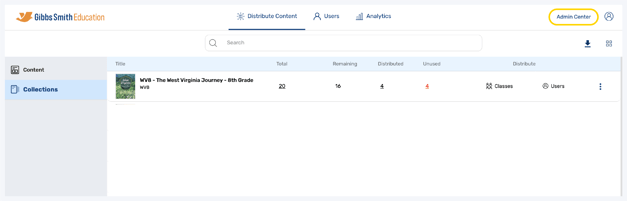
2. Click Bulk User Delete from the left panel
3. Select which users or classes you would like to delete and click Bulk Delete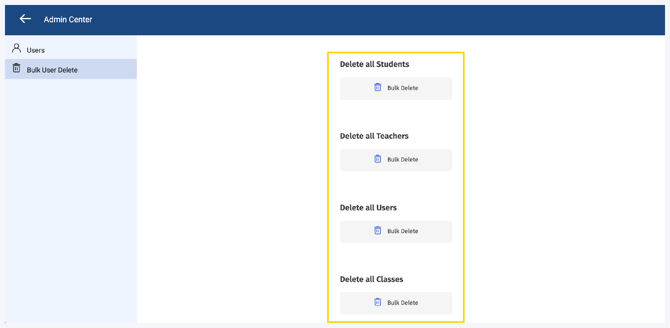
4. In the pop-up, click Proceed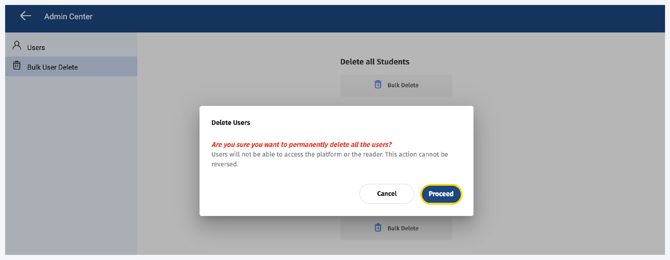
5. All selected users or classes will be deleted
Back to Top
Having trouble?
Try enabling pop-ups and clearing cache and cookies.