
1. Click Highlight from the reader menu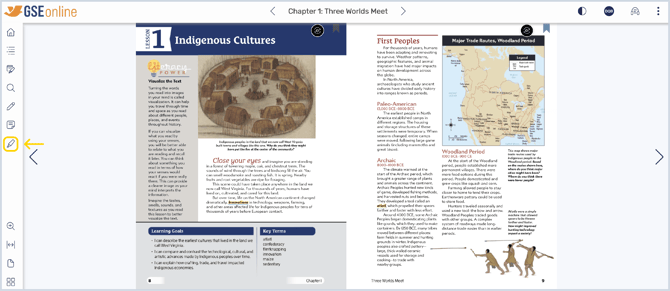
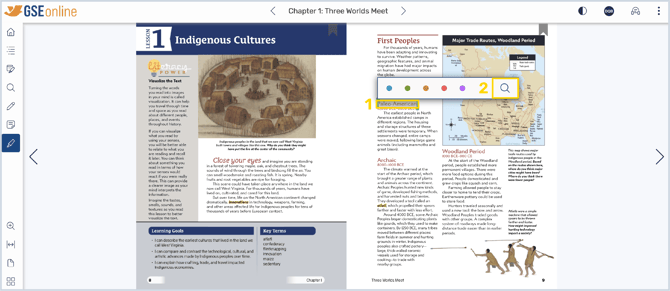
2. Click a word or click and drag to highlight a sentence or section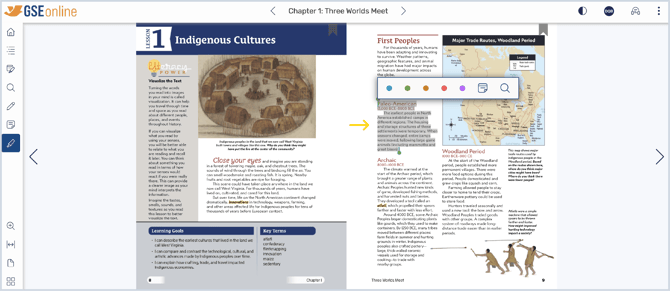
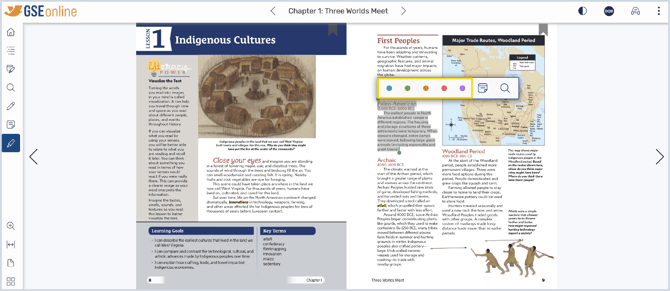
3. Select the color you would like your highlight to be to create the highlight
Tip: This is a great way to organize your notes
4. To edit the highlight, click the highlighted text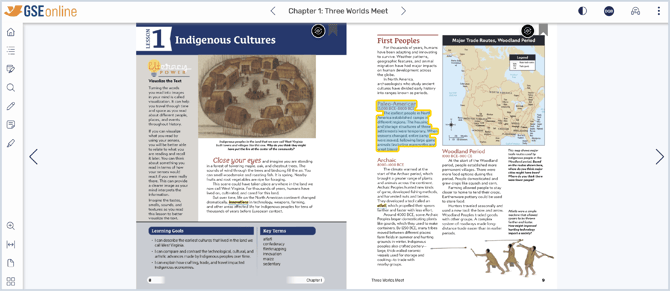
5. Select a new color to change the highlight color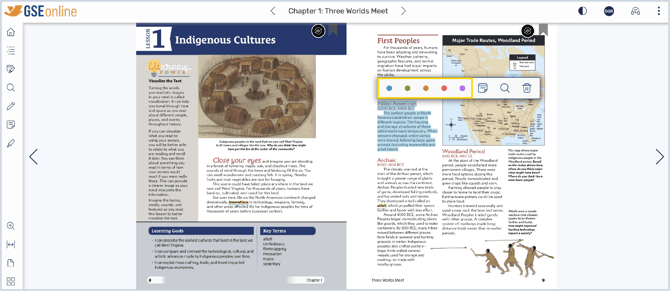
6. Click the Delete icon to delete the highlight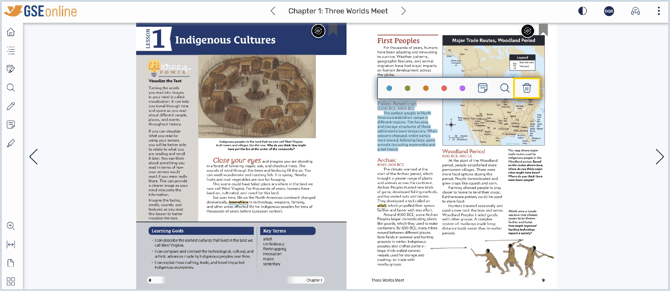
7. Click Note to add a note to the highlight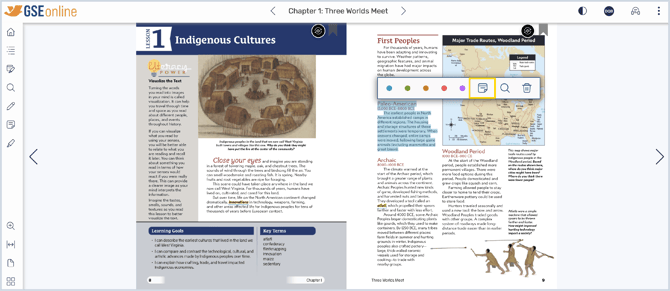
8. Type your note and click Save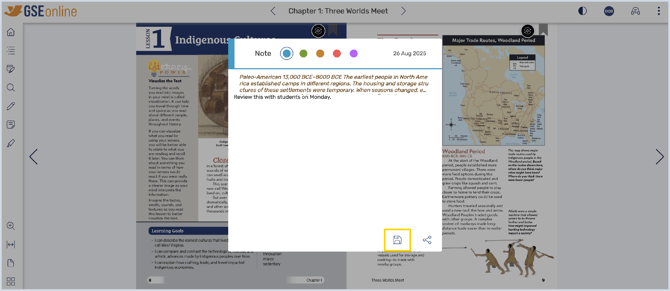
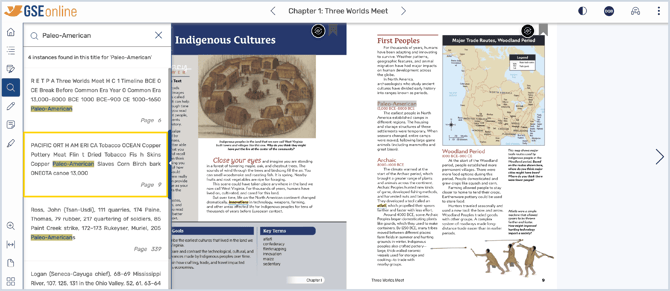
9. To search for a highlighted term, click Search
Tip: You can also search for partial or full sentences, but it is less likely they will be found anywhere else in the book
10. Search results containing the term or phrase will be shown
Tip: Click a result to go to that page
11. To view and sort your highlights, open My Annotations from the reader menu
• Highlights without notes will be under Highlights
• Highlights with notes will be under Notes
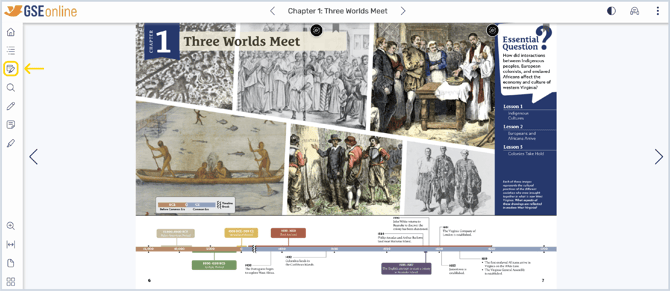
12. Click on an annotation from the Highlights or Notes tabs to go to that page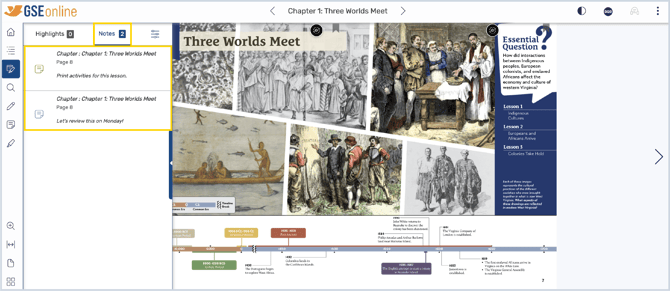
Having trouble?
Try enabling pop-ups and clearing cache and cookies