
Within this article:
• Configuring GSEonline as an External App in Canvas
• Adding the GSEonline External App to Course Modules
• Launching the GSEonline External App
GSEonline as an External App in Canvas
GSEonline can be configured as an external app within Canvas for instructors and students to access from within the platform.
Configuring an External App
System administrators can add GSEonline as an external app at the system level and configure it with your licensing information as provided by the GSE Digital Team in order to make GSEonline available to your instructors and students in their Canvas courses.
1. Go to Courses and click Settings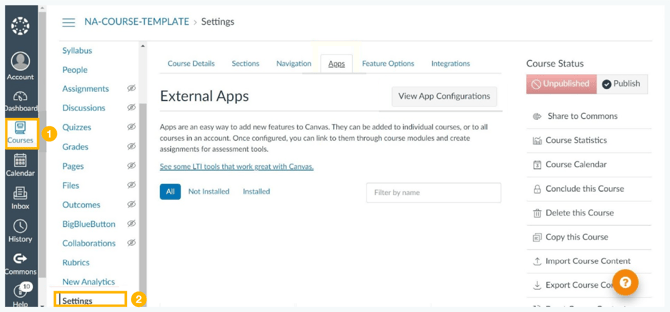
2. Go to Apps and click View App Configurations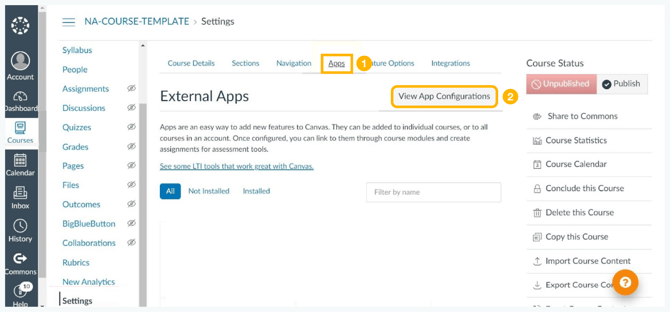
3. Click + App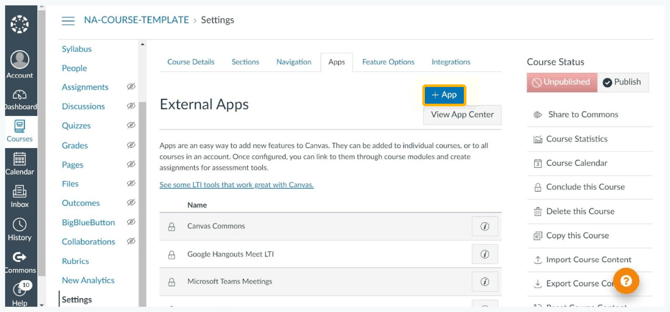
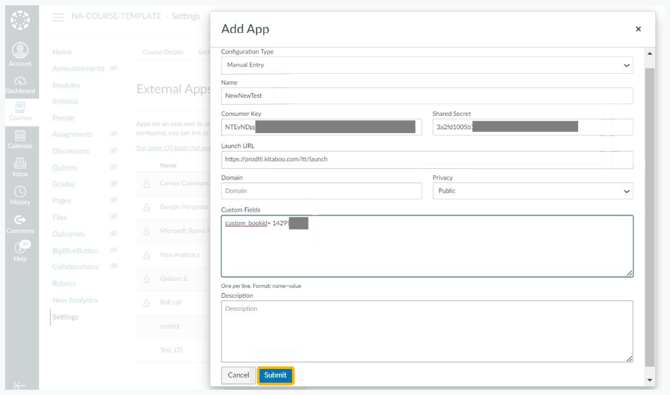
4. In the Add App window, input the following information into the fields:
• Configuration Type: Select Manual Entry
• Name: Input GSEonline (This guide will use “NewNewTest”)
• Consumer Key: Input Consumer Key provided by GSE support team
• Shared Secret: Input Secret Key provided by GSE support team
• Launch URL: Provided by GSE support team
• Privacy: Select Public
• Custom Field: Input the an Integration ID(s) provided by the GSE support team using the following format depending on your goal. You can request multiple integration IDs to complete your configurations.
Link to Collection (Multiple Books)
• custom_collectionid=<Space>Enter Collection Integration ID
• Example: custom_collectionid= 223910
Link to Book (Singular)
• custom_bookid=<Space>Enter Book Integration ID
• Example: custom_bookid= 223910
Link to Page (Within a Singular Book)
• custom_pageid=<Space>Enter Page ID
• Example: custom_pageid= 223910
• Once all details are entered, click Submit
5. Click Yes, Install Tool
Adding the GSEonline External App to Course Modules
Once the System Admin has completed the configuration, the GSEonline external app can be added to modules within a course.
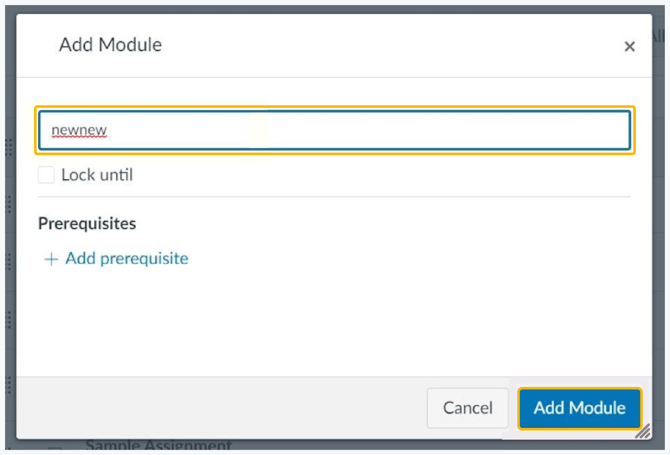
1. To add a new module, go to Modules and click + Module
• Enter a module name (“newnew” will be used in this guide)
• Click Add Module
2. Scroll to find the module you created and click on the + icon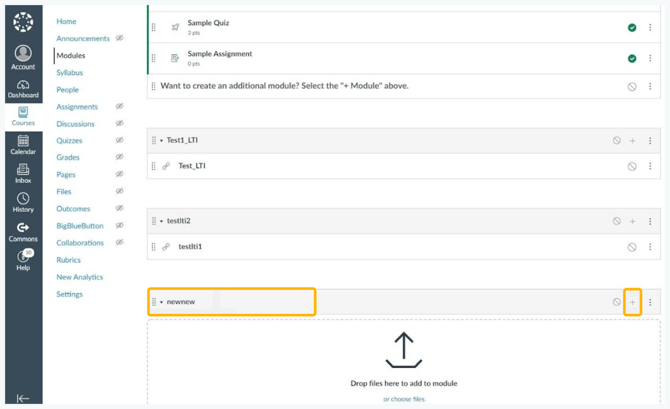
3. Select External Tool from the drop down menu
• Select the app you created earlier
• Click Add Item

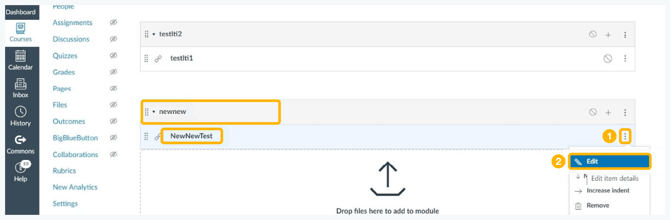
4. Go to the module and locate the app
• Click the App menu (3 dots)
• Click Edit
5. Tick the checkbox next to Load in a new tab and click Update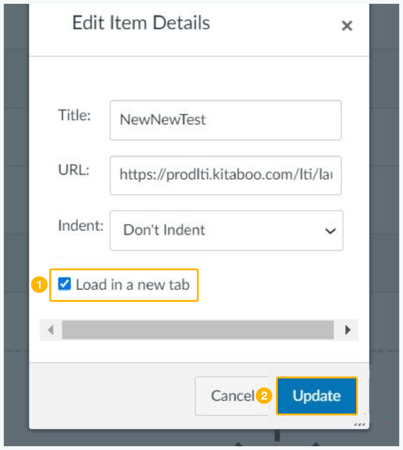
Launching the GSEonline External App
Once the GSEonline external app has been configured and added to the course module, it can be accessed and launched by instructors and students.
1. Click the app within the module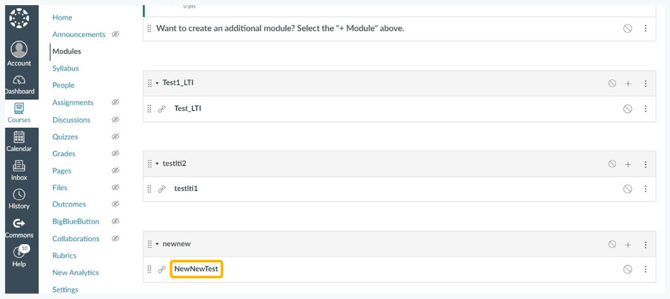
2. Click Load [App Name] in a new window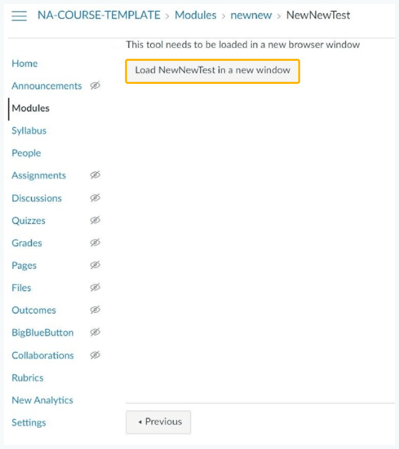
3. The GSEonline Bookshelf will open