
Note: Removing a user from a class does not delete the user
1. Click Users at the top of the page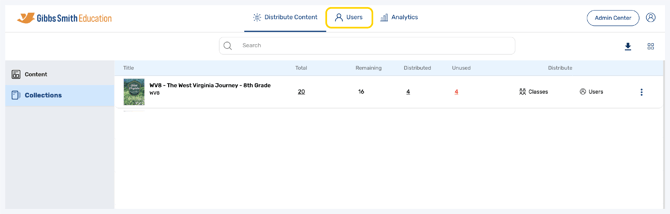
2. (District Accounts Only) Click the School Selection from the top of the page and select which school you would like to manage users and classes for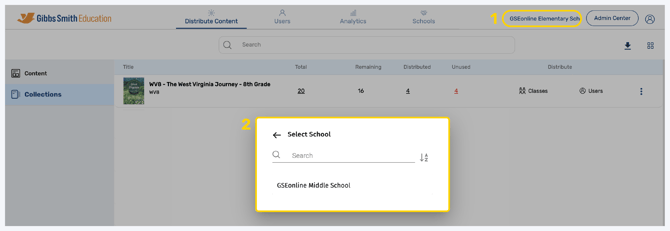
3. Click Classes from the left panel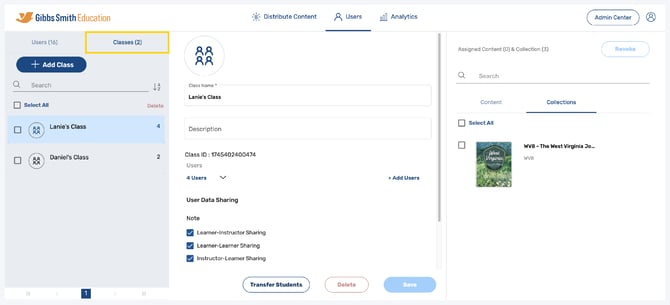
4. Click on the class you would like to remove users from from the list or by using the search feature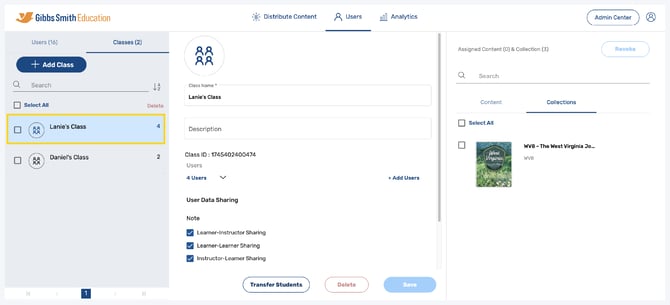
5. Click the down arrow next to Users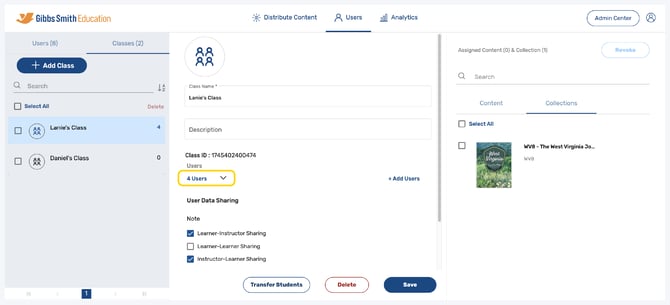
6. Toggle between Teacher and Student to see all users in the class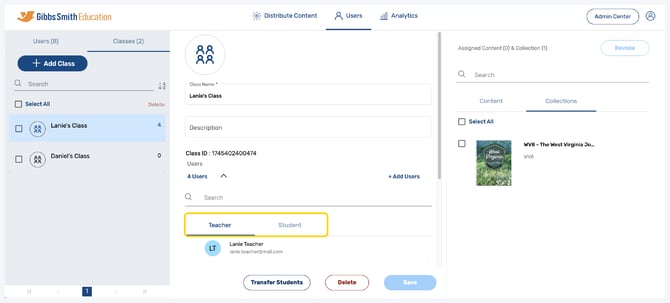
7. Hover over a user you would like to remove and click the X next to their name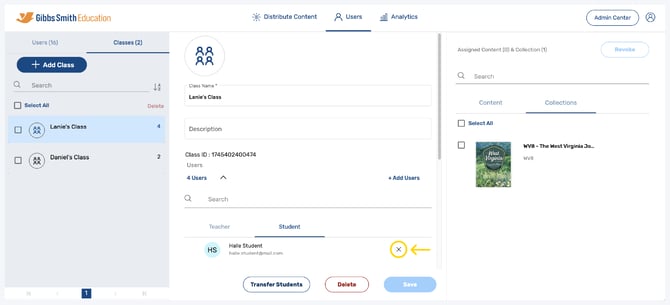
8. That user will be removed from the class and any class content will be revoked
Having trouble?
Try enabling pop-ups and clearing cache and cookies