
Note: 2-Factor Authentication is only available for School Level accounts.
1. Login to a School Level account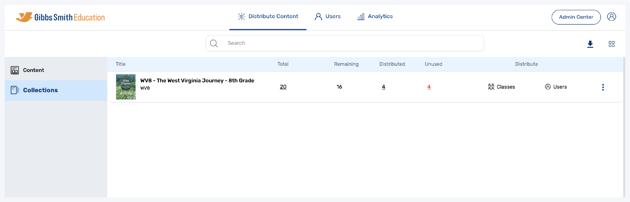
2. Click the Profile icon at the top right of the page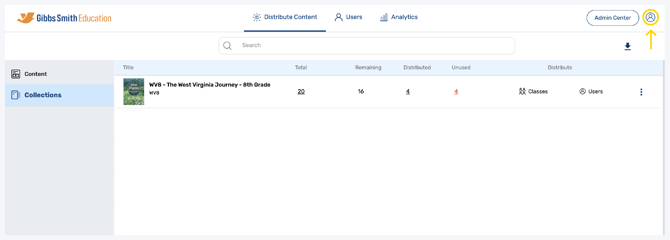
4. To enable 2-Factor Authentication toggle the button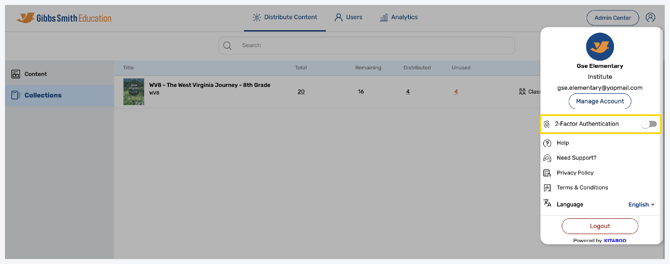
5. Click Setup Authentication 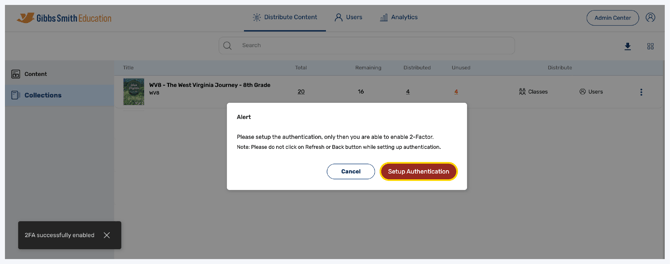
6. Download the Google Authenticator app on your mobile device
7. In the Google Authenticator app, tap on the + then click Scan a QR code
8. Go back to the Administrator Portal and scan the QR code with your mobile device's camera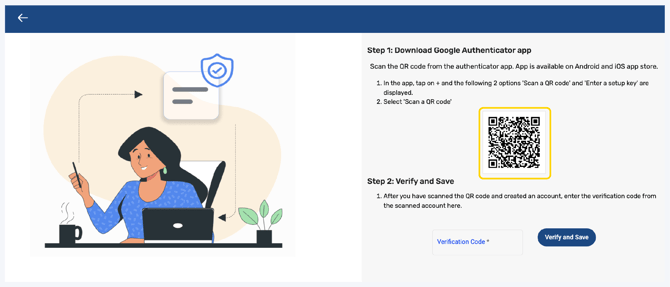
9. Once you have scanned the QR code and created an account, enter the verification code from the Google Authenticator app where it says Verification Code*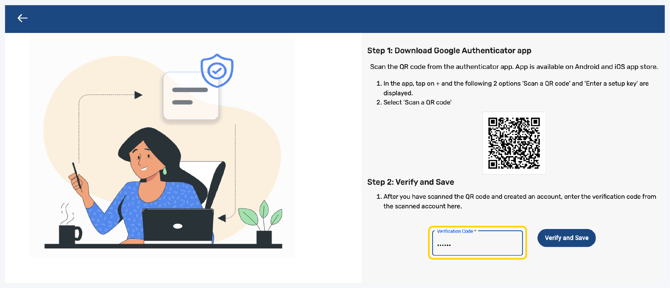
10. Click Verify and Save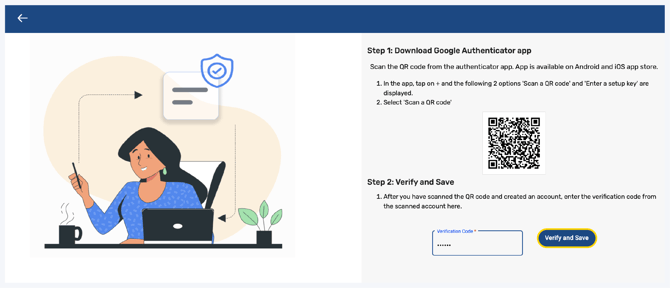
Having trouble?
Try enabling pop-ups and clearing cache and cookies