
Important: Deleting a user will also delete their user data. If you do not want to permanently delete a user, consider deactivating the user instead.
Guide: Deactivating Users
Within this article:
• Deleting Multiple Users
• Deleting Individual Users
Deleting Multiple Users
1. Click Users at the top of the page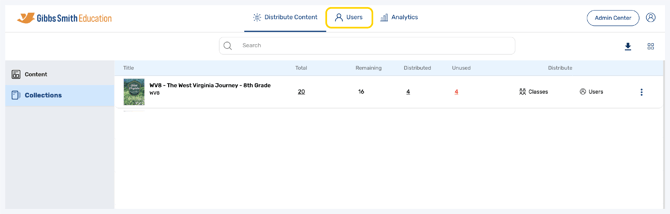
2. (District Accounts Only) Click the School Selection from the top of the page and select which school you would like to manage users and classes for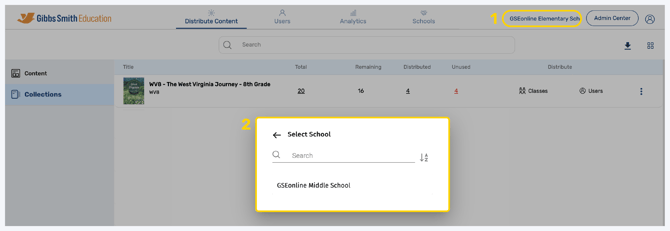
3. Click Users from the left panel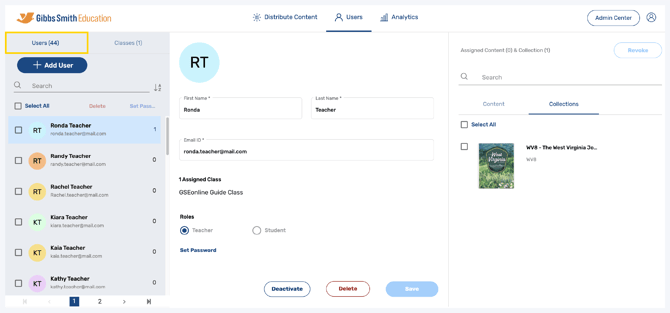
4. Click the checkboxes next to the user(s) you would like to delete
Tip: Click Select All to select all users
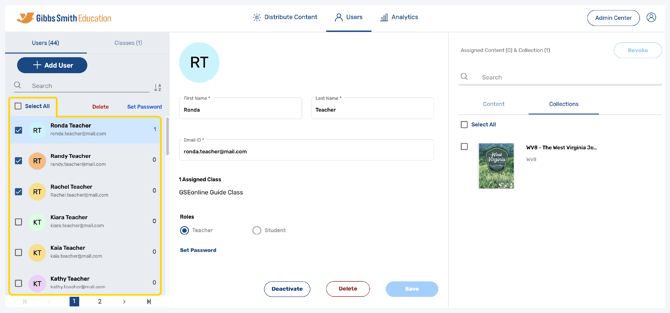
5. Click Delete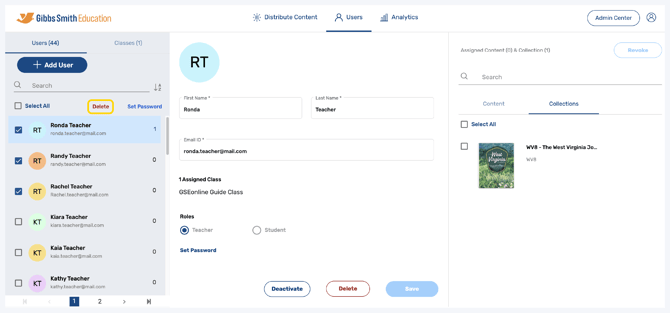
6. Select Delete selected users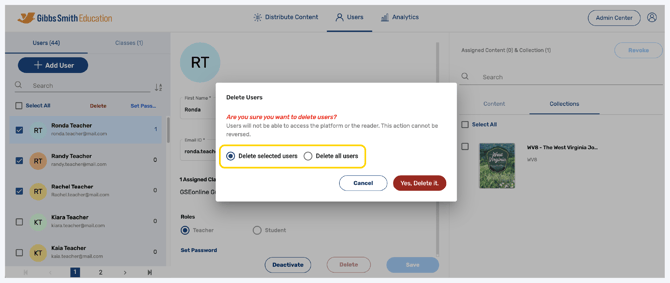
7. Click Yes, Delete it.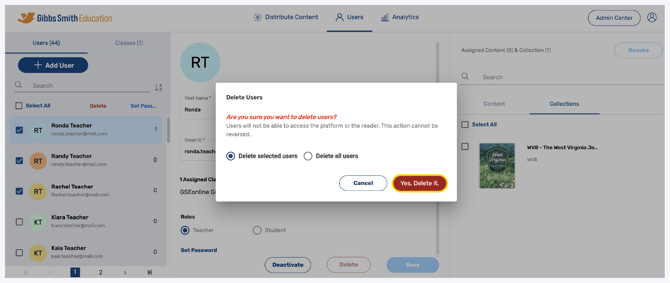
8. Selected users will be deleted
Tip: To learn how to create new users in bulk, use the guide below:
Deleting Individual Users
1. Click Users at the top of the page
2. (District Accounts Only) Click the School Selection from the top of the page and select which school you would like to manage users and classes for
3. Click Users from the left panel
4. Click on the user you would like to delete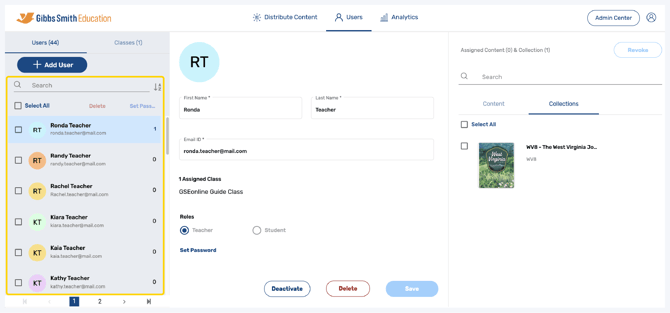
5. At the bottom of the user profile, click Delete
Warning: Deleting a user is permanent!
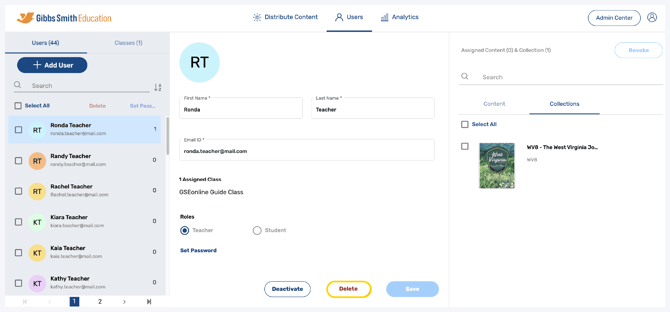
6. In the pop-up, click Yes, Delete it
7. The user will be deleted
Having trouble?
Try enabling pop-ups and clearing cache and cookies