
Important: Once deactivated, a user will not be able to access the reader until reactivated.
Note: If a user is deactivated, they will still retain content licenses. Content will need to be revoked from the user before the license can be redistributed to another user.
Guide: Revoking Content from Users
1. Click Users at the top of the page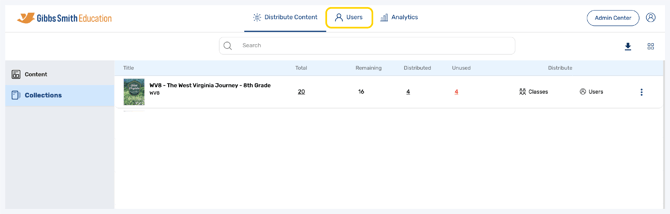
2. (District Accounts Only) Click the School Selection from the top of the page and select which school you would like to manage users and classes for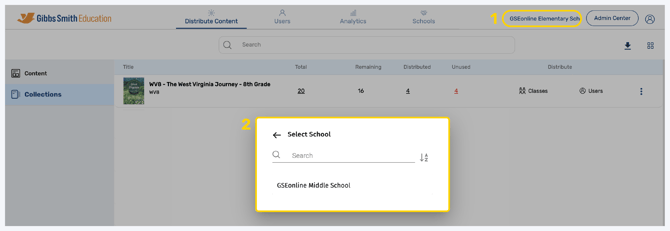
3. Click Users from the left panel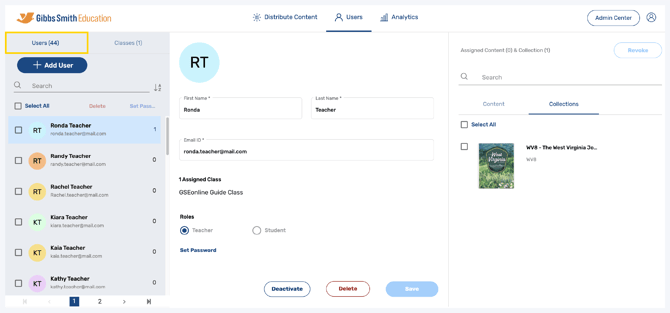
4. Click on the user you would like to deactivate from the list or by using the search feature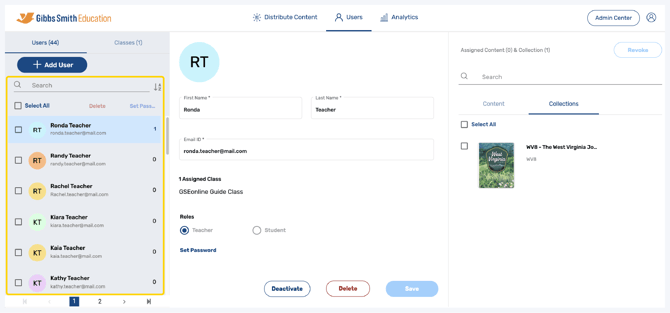
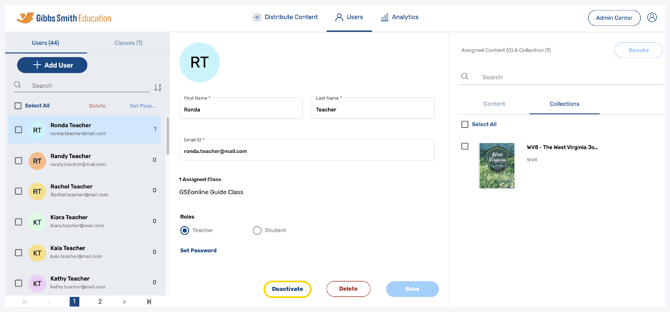
5. At the bottom of the user profile, click Deactivate
Important: If there is a button which says Activate then the user has already been deactivated
6. In the pop-up, click Yes, Deactivate it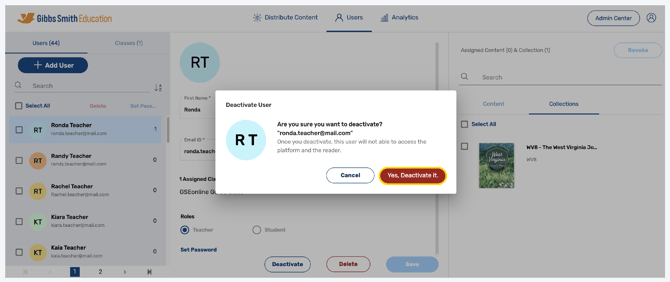
7. The user will be deactivated and will no longer be able to login to GSEonline
8. To reactivate the user, click Activate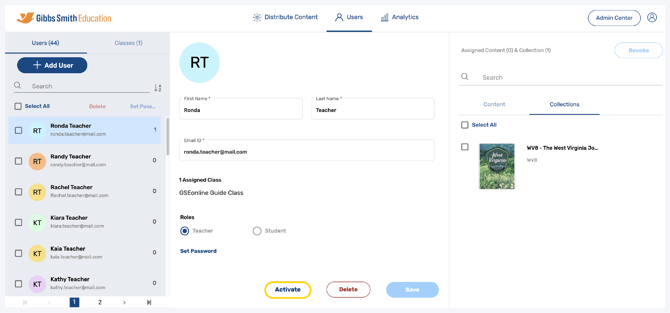
Having trouble?
Try enabling pop-ups and clearing cache and cookies