
Note: This guide is for school or district administrators who would like to change their password for the Administrator Portal. This guide will not work to update a teacher or student password for GSEonline. To update a teacher or student password, follow this guide: Setting or Changing User Password
1. Click the Profile icon at the top of the page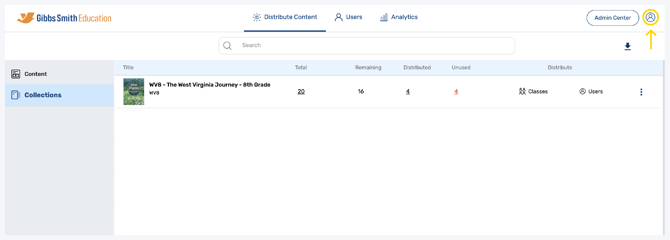
2. Click Manage Account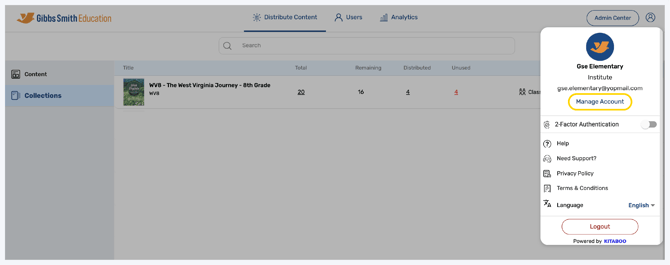
3. Click Password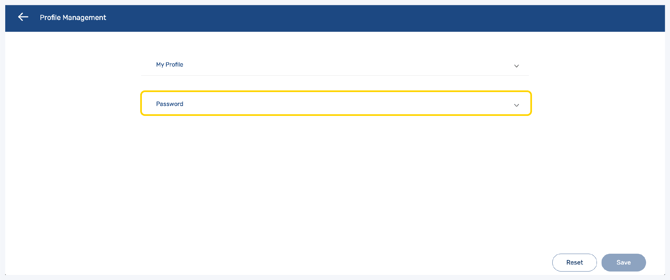
4. Enter your current password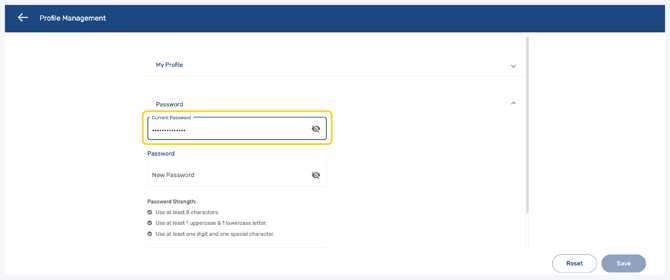
5. Follow the guidelines to create a new password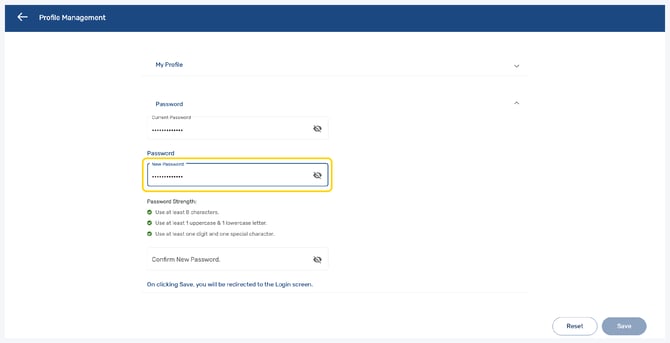
6. Enter the new password again to confirm it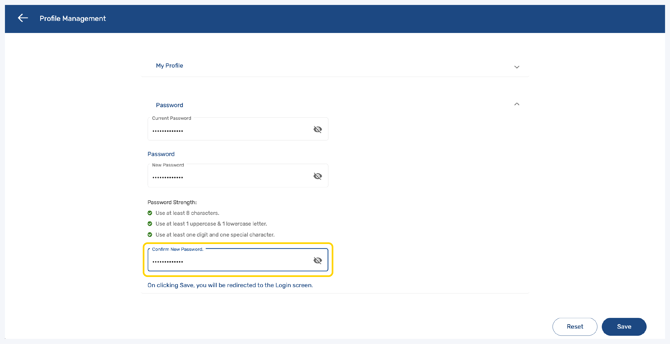
7. Click Save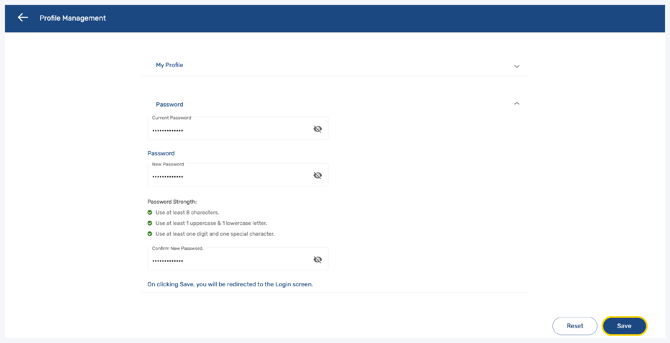
8. You will be redirected to the login screen where you can login using your new password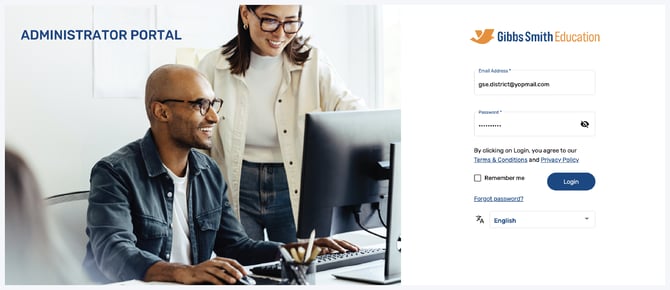
Having trouble?
Try enabling pop-ups and clearing cache and cookies