
Tip: This method can be used at the beginning of a new school year to redistribute content from old users to users. This method keeps the class intact, but allows for students or teachers to be swapped out and content to be redistributed.
1. Click Users at the top of the page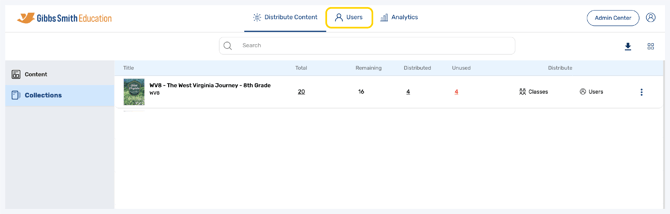
2. (District Accounts Only) Click the School Selection from the top of the page and select which school you would like to manage user and classes for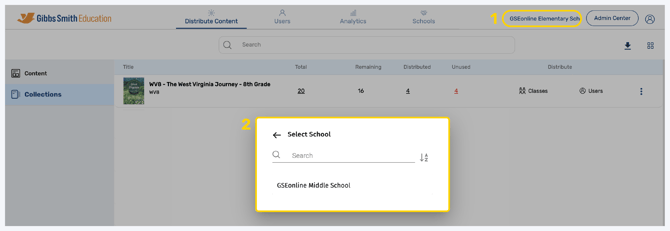
3. Click Classes from the left panel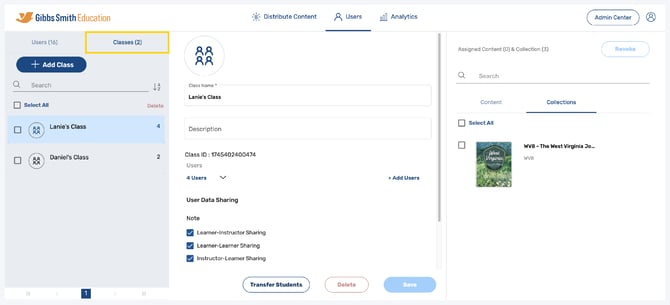
4. Click on the class you would like to remove users from from the list or by using the search feature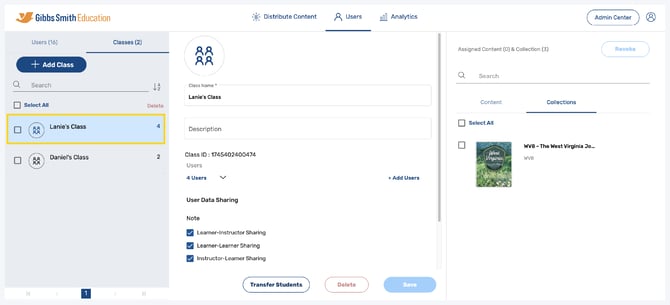
5. Click the arrow next to Users to view users in the class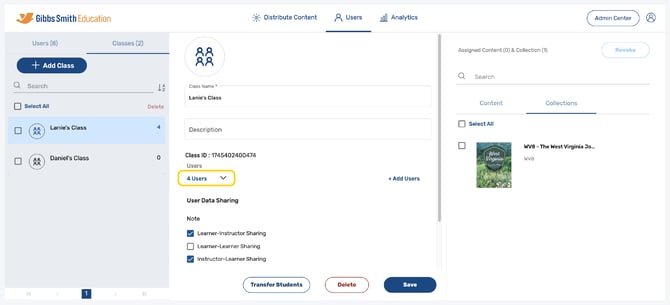
6. Toggle between Teacher and Student or use the search feature to see all users in the class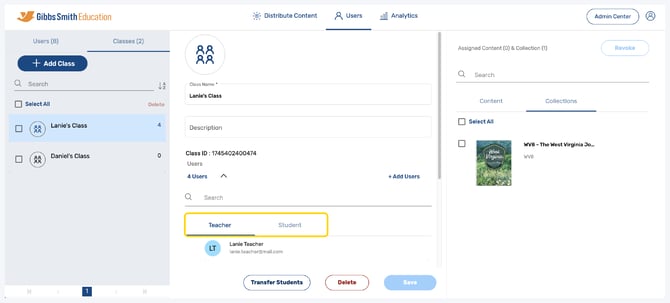
7. Hover over a user you would like to remove and click the X next to their name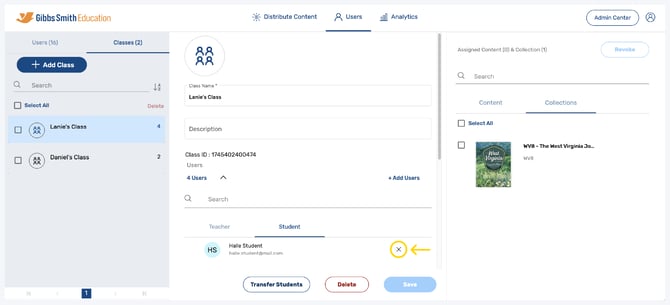
8. That user will now be removed from the class and any class content will be revoked
9. Go back to the class and click + Add Users
10. Find the new user(s) you would like to add and click the checkbox next to their name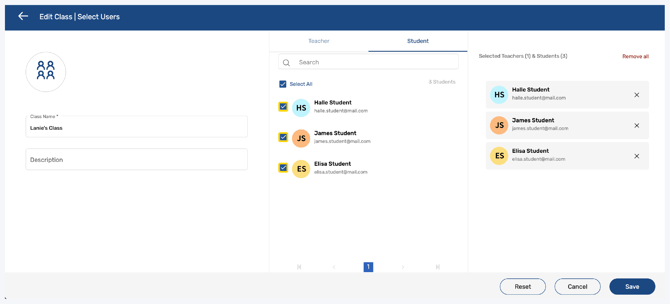
11. Click Save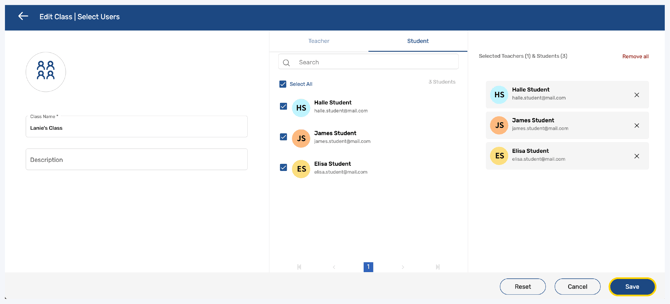
12. In the pop-up, click the checkbox on the left then click Assign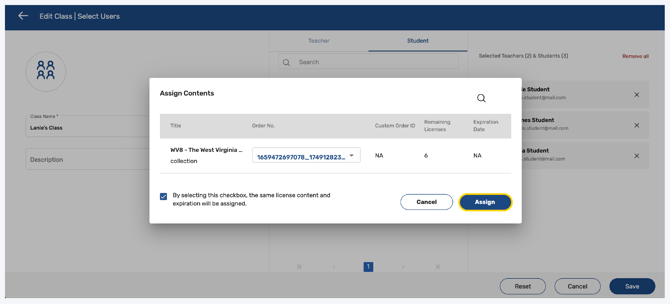
Important: Removing a user from a class does not delete the user. Please note that content must be revoked before a user is deleted in order to recover content licenses.
To learn how revoke content from and delete users, use the guides below:
Having trouble?
Try enabling pop-ups and clearing cache and cookies