
Important: How you sign in depends on how your administrator has set up access. This guide is for those using a Username (Email) and Password to login. If your school or district uses a Single Sign-On (SSO) method, you can use one of the guides below:
• Signing in with ClassLink
• Signing in with Clever
• Signing in with Google
• Signing in with SAML
Note: You do not need an access code to sign in to GSEonline if you are signing in with Email, Google Classroom, ClassLink, or SAML
1. Go to GSEonline

2. Enter your Email Address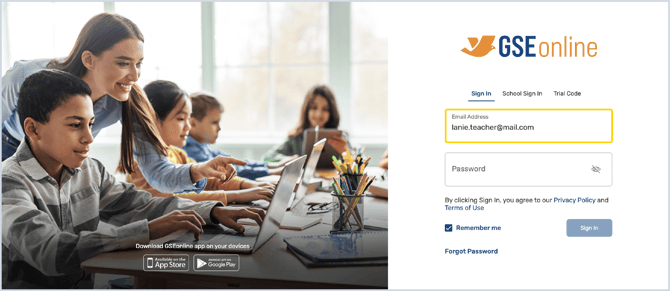
3. Enter your Password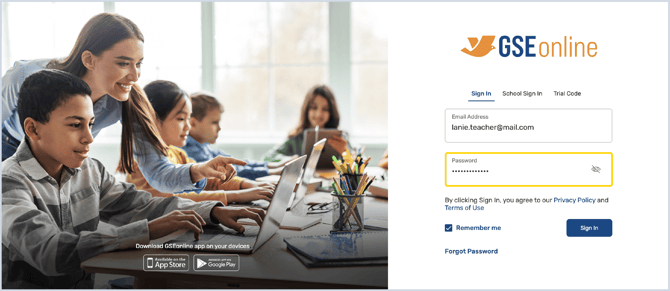
4. (Optional) Click the checkbox next to Remember me
Tip: Follow this step if you would like your Email and Password to auto-populate next time you sign in
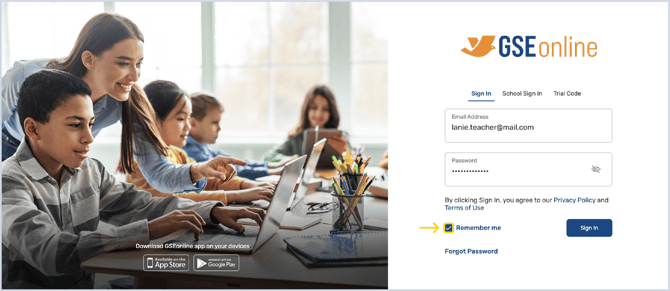
5. Click Sign In
Having trouble?
Try enabling pop-ups and clearing cache and cookies