
1. Click the Note icon from the reader menu
2. Click a spot on the page and the Note window will open
3. Select the color you would like your note to be
Tip: This is a great way to organize your notes!
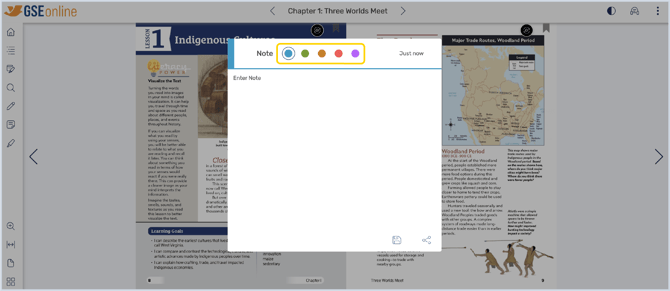
4. Type your note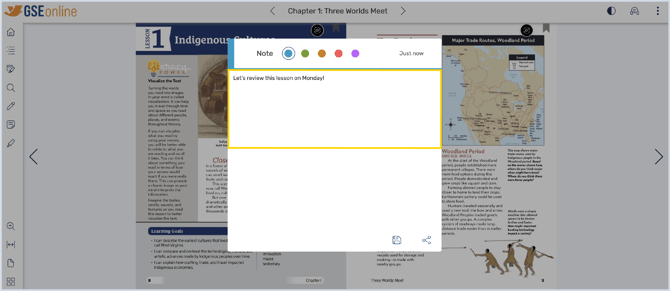
5. If you change your mind about taking the note, click anywhere outside the Note window to cancel taking the note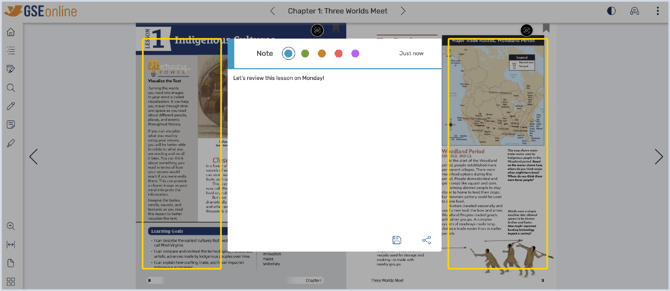
6. Click Save to save your note and close the Note window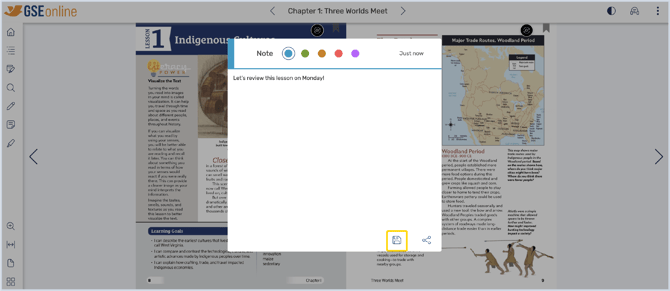
7. The note will appear on the page
Tip: All created notes and shared notes can be found in My Annotations

8. Click and drag the note to move it around the page
9. To edit a note, click the note on the page
10. Select a new color or edit your text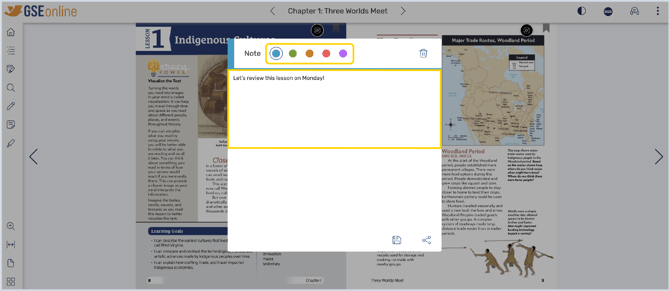
11. Click Delete to delete your note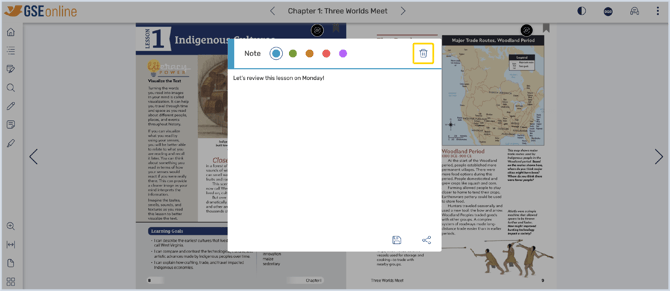
12. (Optional) To share a note, click Share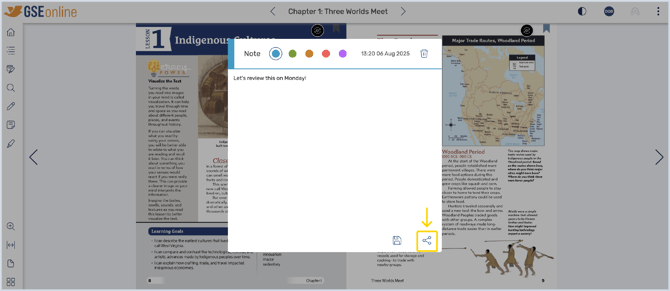
13. Select who you would like to share you note with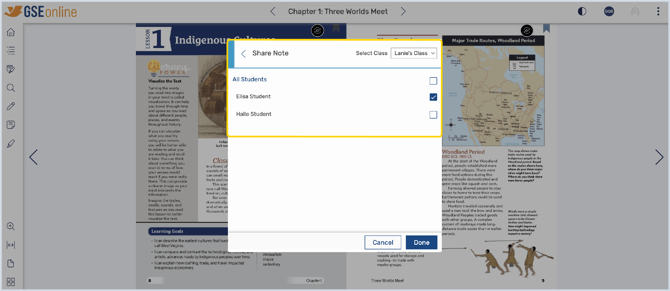
14. Click Done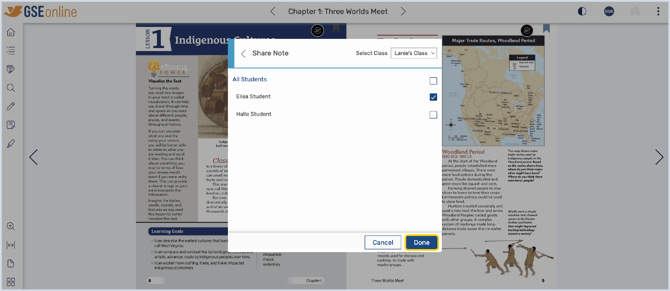
15. The note will be shared
Having trouble?
Try enabling pop-ups and clearing cache and cookies