
Within this article:
• Bulk Upload Steps
• Errors & Solutions
Bulk Upload Steps
1. Open the Bulk Upload Sample Sheet provided by the GSE Digital Team in a spreadsheet program
2. When filling in the Bulk Upload sample sheet, your users' Google emails must be input into three columns: Username, Client UserID, and Email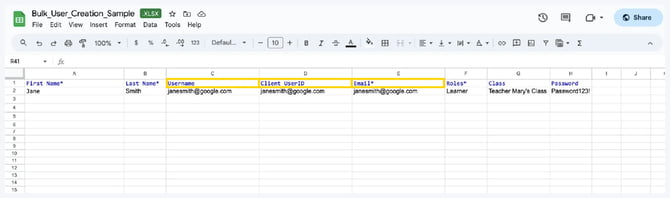
Tips for Filling in the Bulk Upload Spreadsheet:
- Important: Do not change column headers or order
- In the "Roles" column, teachers and administrators should be listed as "Instructor," and students should be listed as "Learner"
- Remember to fill in your data on the Bulk Upload tab of this workbook, not the Instructions tab
- First Name, Last Name, Username, Client UserID, Email, Roles, and Password are mandatory fields
- Use “##” as a separator when the user belongs to multiple classes (ex. Science##Biology)
3. Go to the Administrator Portal and login to your account
4. (District Accounts Only) Click the School Selection from the top of the page and select which school you would like to manage users and classes for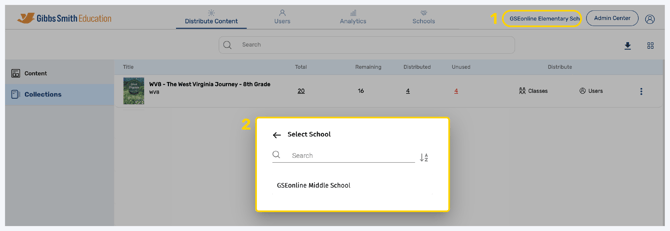
5. Click Users at the top of the page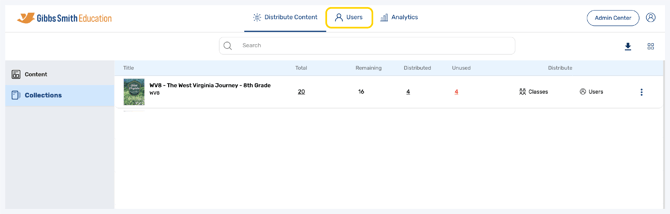
6. In the Users or Classes section, click + Add User or + Add Class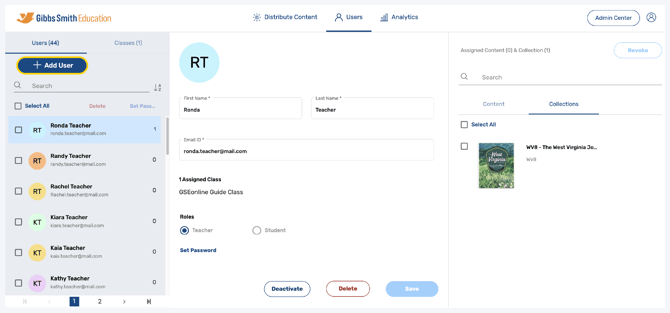
7. Click Multiple Users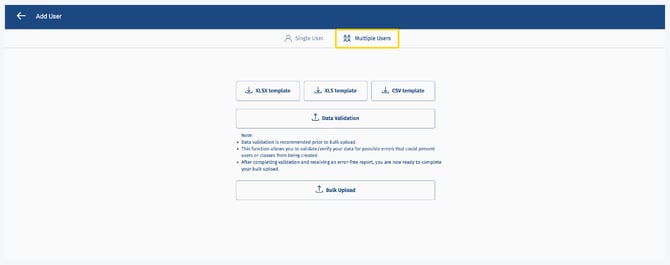
8. Click Data Validation and select your file
9. Click Download Log File at the bottom of the page to download the Error Sheet
10. Open the Error Sheet in Microsoft Excel or a similar spreadsheet program and review errors in the Validation Errors column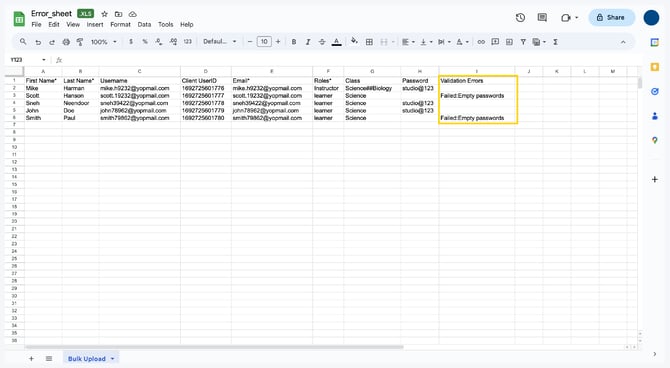
11. If there are any errors, open your original file and make the corrections
12. Repeat Steps 13-15 (Data Validation and corrections) if you have made corrections
13. In the Administrator Portal, click Bulk Upload and select your sheet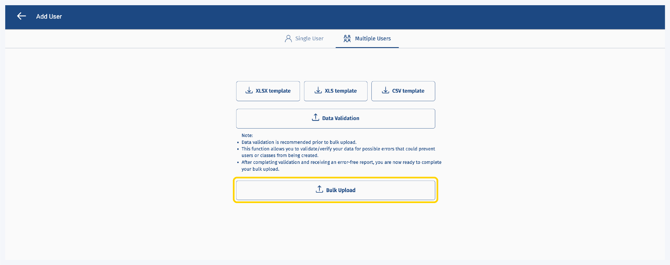
14. To view the report for your upload you can click Download Log File at the bottom of the page
15. On the Users page, you will now see the users and classes in the left panel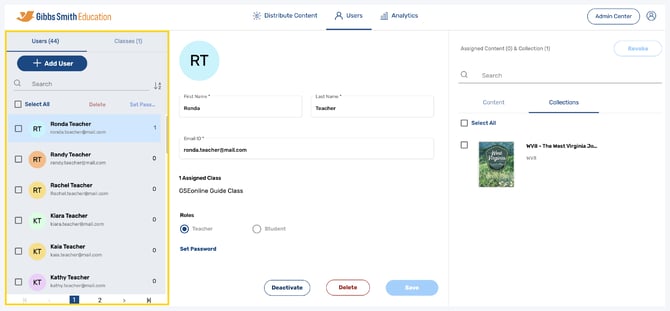
16. Users will login by clicking Sign In with Google and following the steps to sign in to their Google accounts
Errors & Solutions
| Error | Solution |
| Failed:Empty Email | Input valid email in empty slot |
| Failed:Duplicate Email ID or Username | Remove or replace duplicate email or username |
| Failed:Invalid Username data |
Fix email format Note: Emails must include @ symbol |
| Failed:Empty First Name | Input first name in empty slot |
| Failed:Empty Last Name | Input last name in empty slot |
| Failed:Empty role |
Input role in empty slot Note: Students must be marked as LEARNER and teacher must be marked as INSTRUCTOR |
| Failed:Invalid role data |
Fix role inputs Note: Students must be marked as LEARNER and teacher must be marked as INSTRUCTOR |
| Failed:Empty passwords | Input password in empty slot |
| Failed:Client UserID must be numeric or alphanumeric | Remove non-numeric or alphanumeric symbols |
| Failed:invalid role |
Fix role inputs Note: Students must be marked as LEARNER and teacher must be marked as INSTRUCTOR |
| Failed:Email ID is invalid as per email id guidelines |
Fix email format Note: Emails must include @ symbol |
|
Username Character limits are more than as per sheet instruction, refer to the instruction |
Ensure Username input is within character limit Note: Username limit is 50 characters |
| Password length is not as per instruction. refer instruction |
Ensure Password input is within character limit Note: Password limit is 20 characters |
| Client UserID Character limits are more than as per sheet instruction, refer to the instruction |
Ensure Client UserID input is within character limit Note: Client UserID limit is 100 characters |
| Email Character limits are more than as per sheet instruction, refer to the instruction |
Ensure Email input is within character limit Note: Email limit is 54 characters |
| Lastname Character limits are more than as per sheet instruction, refer to the instruction |
Ensure Last Name input is within character limit Note: Last Name limit is 50 characters |
| Firstname Character limits are more than as per sheet instruction, refer to the instruction |
Ensure First Name input is within character limit Note: First Name limit is 50 characters |
Back to Top
Having trouble?
Try enabling pop-ups and clearing cache and cookies