
Note: Changing password is not advised for users where the school or district manages rostering via automated methods or SSO.
1. In the Bookshelf, click the Profile icon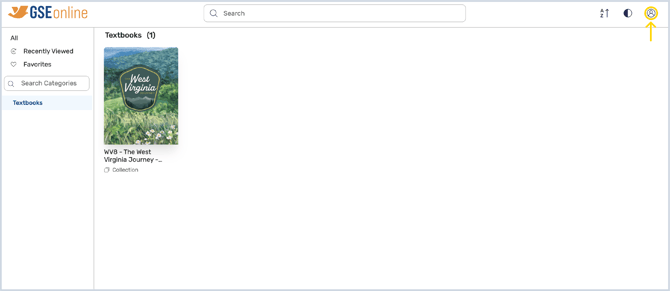
2. Click Manage Account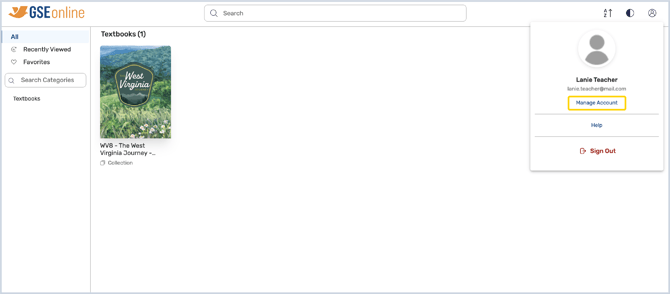
3. Under Manage Account, click Update Password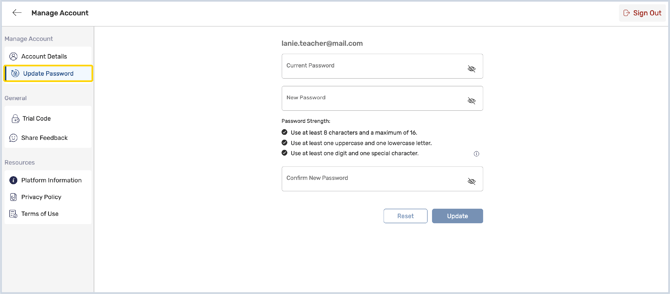
4. Enter your current password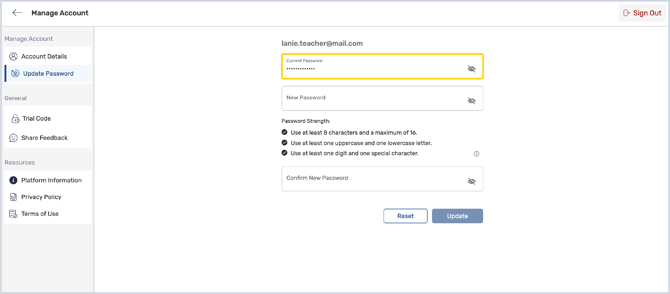
5. Enter the new password twice to confirm it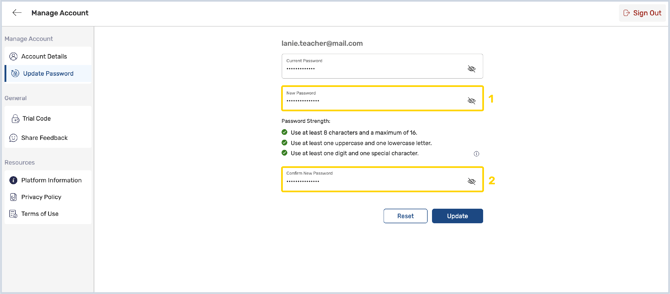
6. Your new password should follow the password guidelines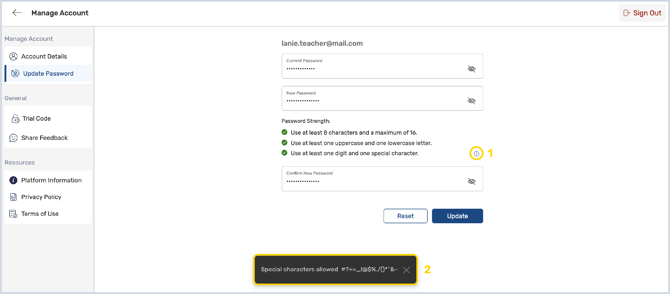
7. Click Update to save your new password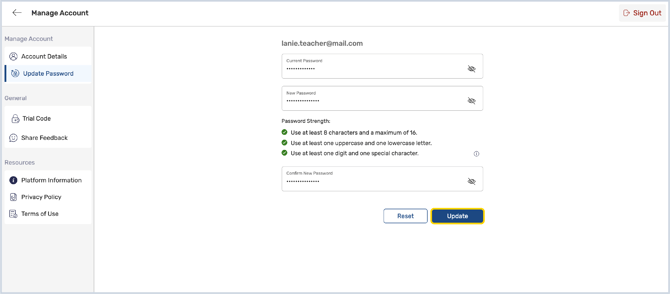
8. If you change your mind, click Reset to clear your inputs
9. Next time you login you will use the new password
Having trouble?
Try enabling pop-ups and clearing cache and cookies