
Within this article:
Overview
On the Users page, you can add, manage, and view classes and users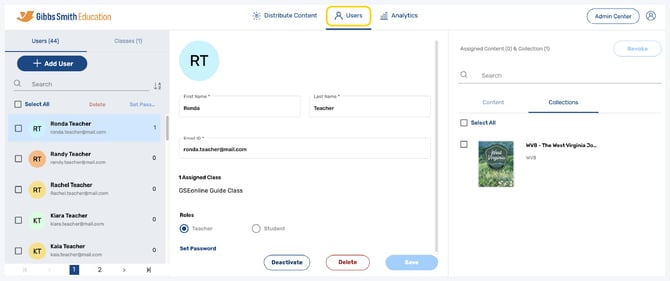
(District Accounts Only) Click the School Selection from the top of the page and select which school you would like to manage users and classes for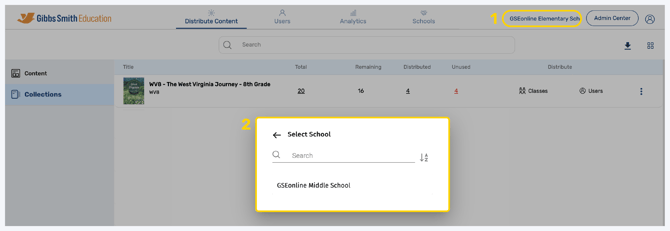
Toggle between the Users and Classes tabs to display individual user and class information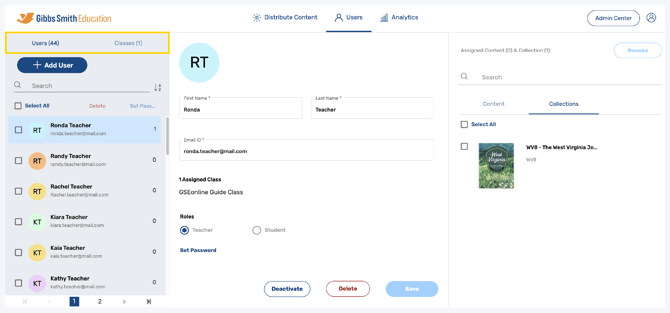
Users
In the Users tab, you can create a new user or multiple new users and classes by clicking + Add User
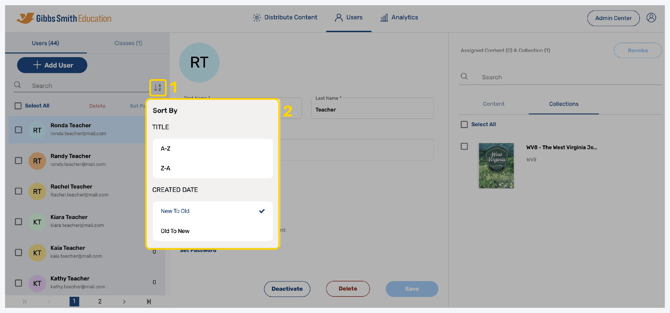
Search users by name using the search feature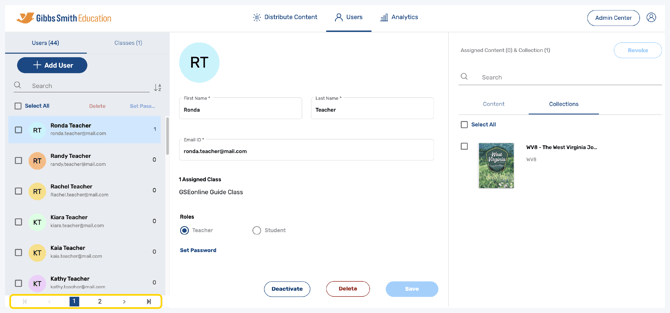
Sort users by Title (Name) or Created Date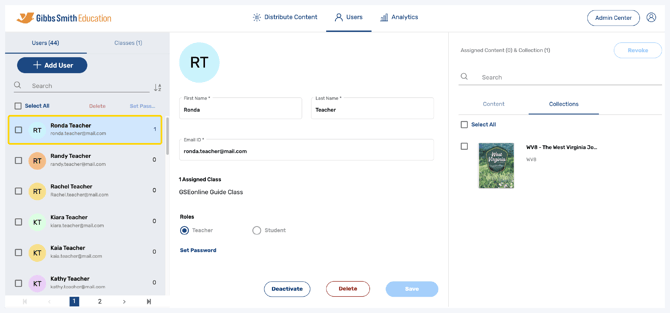
Jump to specific pages by clicking on a page number at the bottom of the User's panel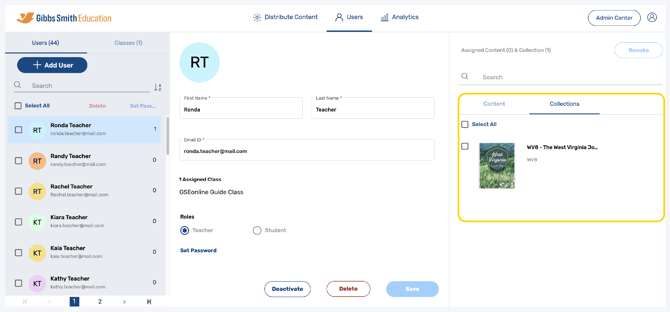
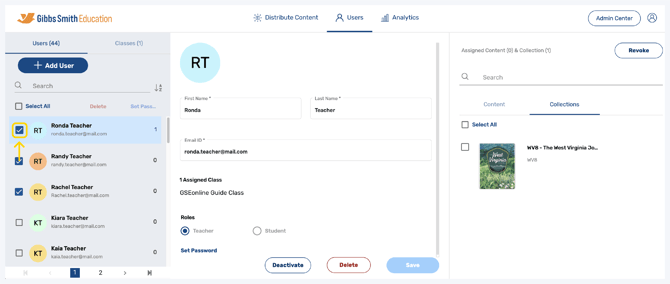
Set Password or Delete multiple users by clicking the checkboxes next to their names
Click on a user to view user details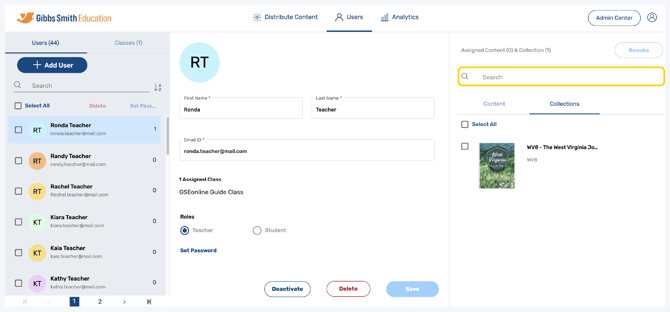
Create a password for the user by clicking Set Password
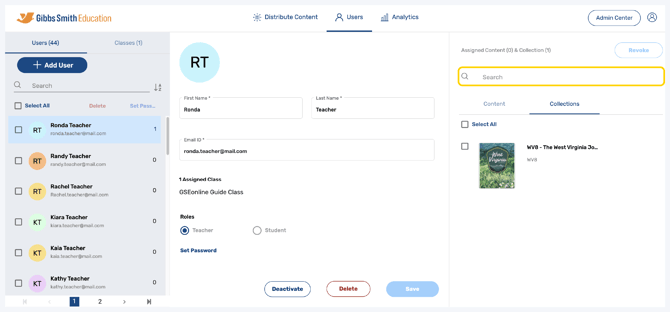
Deactivate or Activate the user by clicking Deactivate or Activate
Note: This is not a permanent change, a user may be deactivated then reactivated
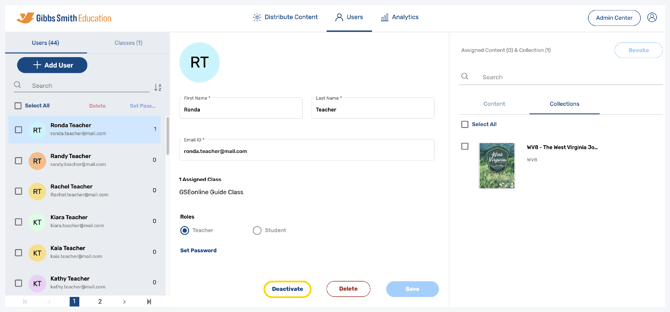
Delete a user by clicking Delete
Warning: Deleting a user is permanent. All data associated with the user's account will also be deleted.
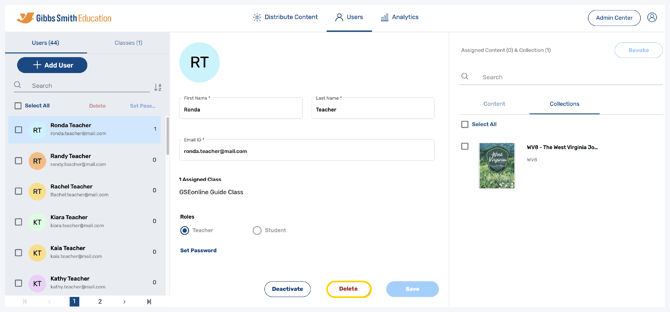
In the right panel under Collections, you can view collections which has been distributed to the user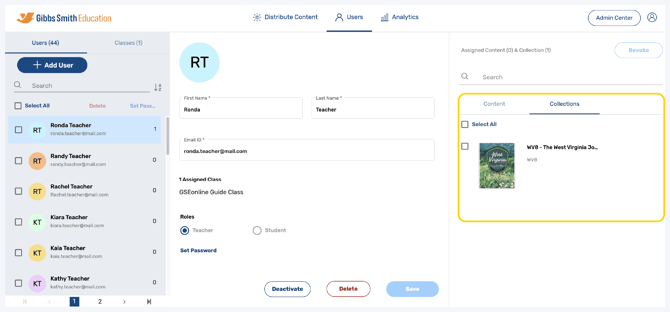
Search for collections by typing a keyword in search bar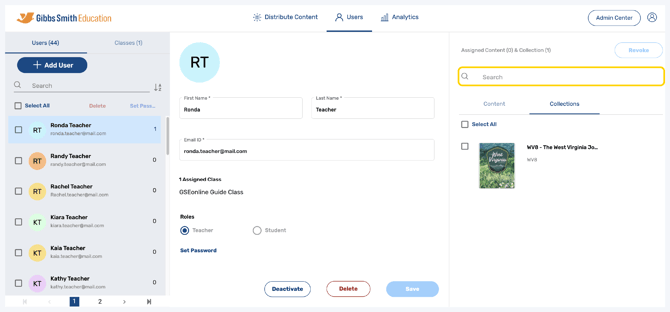
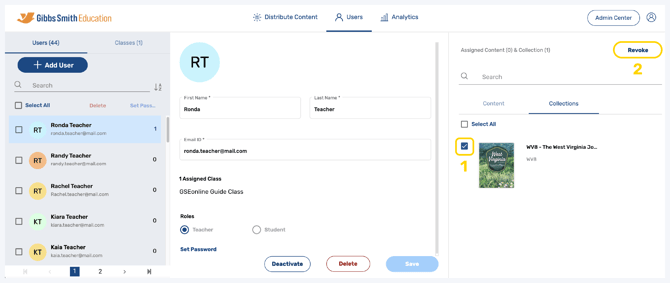
To revoke content, select the collection you wish to revoke by clicking the checkbox, then click Revoke
Classes
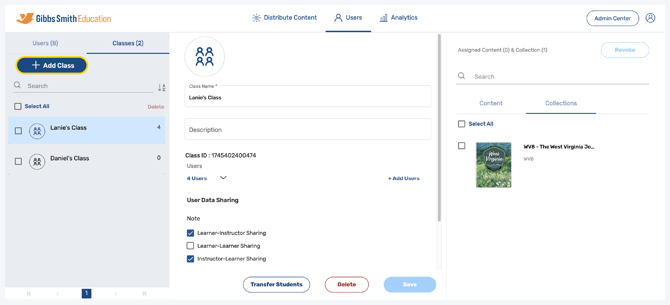
In the Classes tab, create a new class by clicking + Add Class
Guide: Creating Individual Classes
Sort classes by Title (Name) or Created Date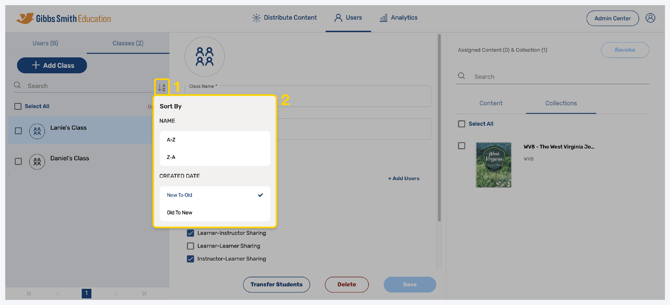
Delete multiple classes by clicking the checkboxes next to them and clicking Delete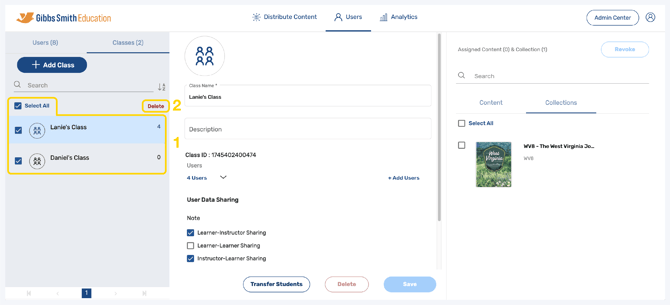
Click on a class to view class details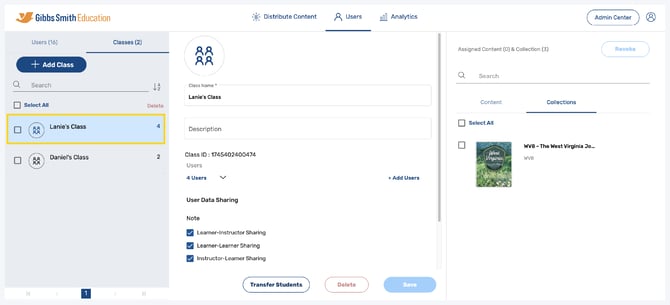
Update class details such as Class Name, Description, or User Data Sharing settings and click Save to save changes
Guide: Editing Classes
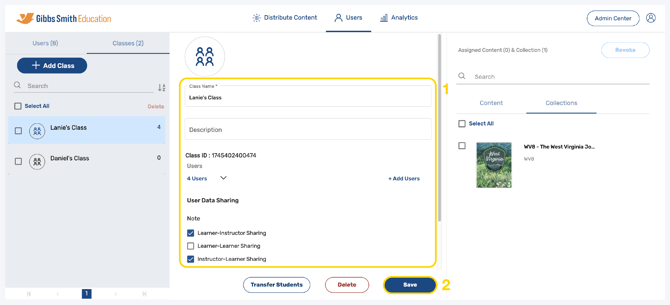
View users in the class by clicking the down arrow next to Users then toggle between Teacher and Student or use the search feature to see all users in the class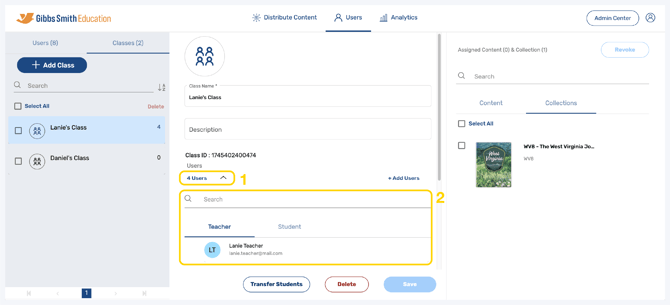
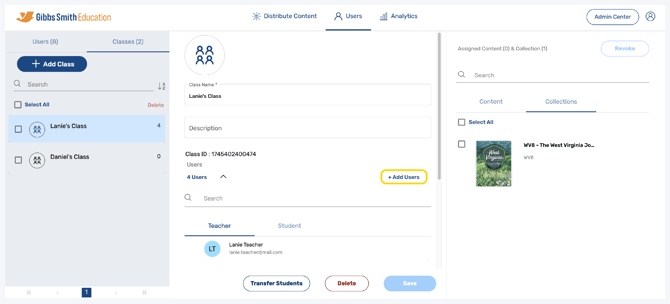
Add users to a class by clicking + Add Users
Guide: Adding Users to Classes
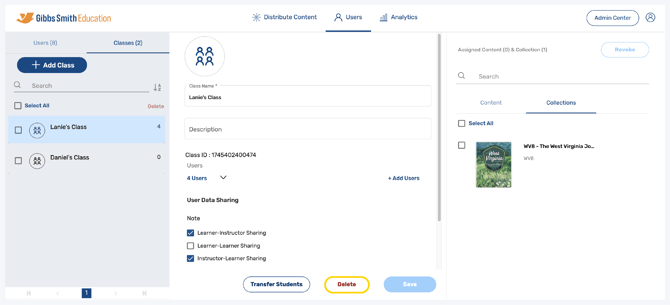
Delete a class by clicking Delete
Guide: Deleting Classes
Warning: Deleting a class is permanent
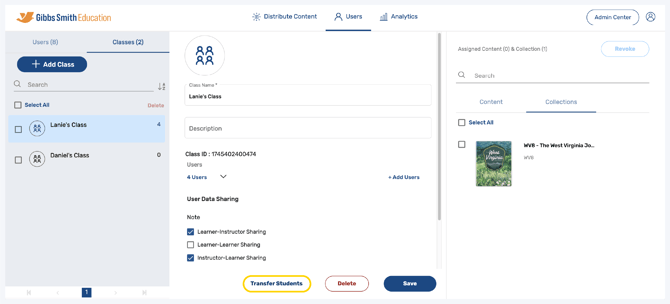
Transfer students to another class by clicking Transfer Students
Guide: Transferring Students
In the right panel under Collections, you can view collections which have been distributed to the class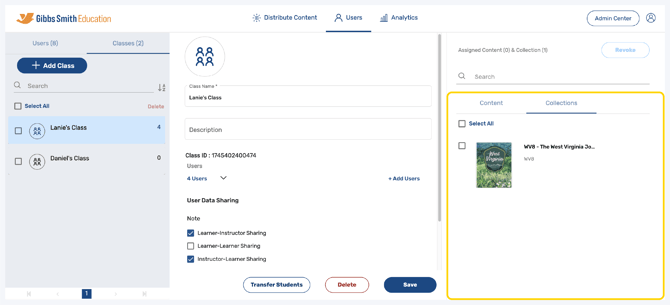
Search for collections by typing a keyword in search bar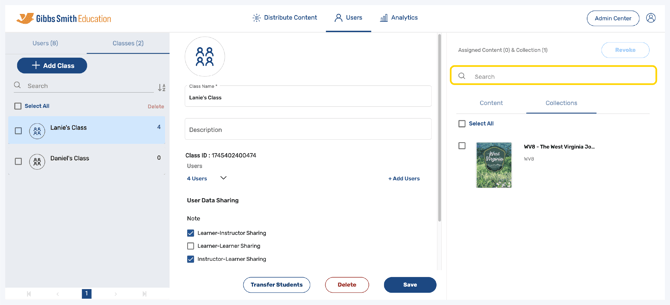
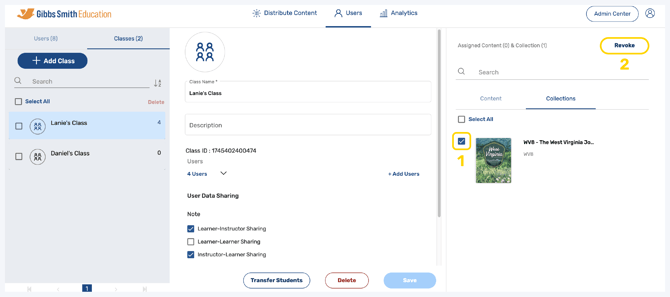
To revoke content, select the collection you wish to revoke by clicking the checkbox, then click Revoke
Back to Top
Having trouble?
Try enabling pop-ups and clearing cache and cookies