
Within this article:
• Creating Admin Accounts
• Editing Admin Accounts
• Deleting Admin Accounts
• Setting or Changing Password for Admin Accounts
• Disabling & Enabling Admin Accounts
Creating Admin Accounts
Note: You cannot create school admins from a District Level account. District Level accounts can be used to create district admins and School Level accounts can be used to create school admins.
Important: If a teacher is also being set up as an admin, they will not be able to use the same email ID for their admin account and teacher account.
1. Click Admin Center at the top of the page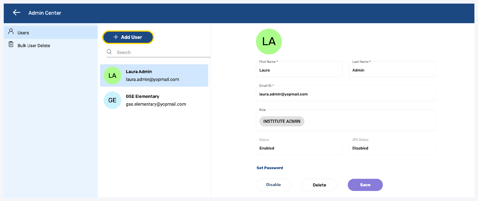
2. Click + Add User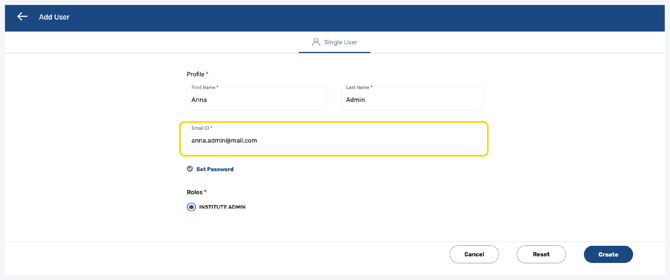
3. Enter the admin's First Name and Last Name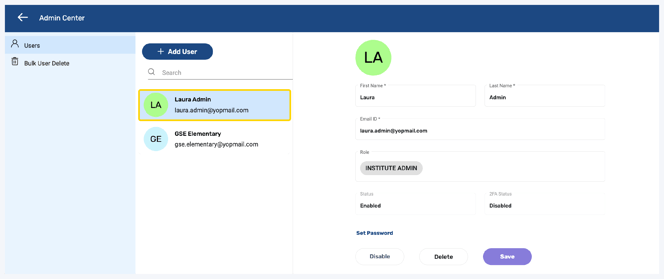
4. Enter the admin's Email ID
Important: This is the email the admin will use to login to the Administrator Portal
Note: If a teacher is also being set up as an admin, they will not be able to use the same email ID for their admin account and teacher account
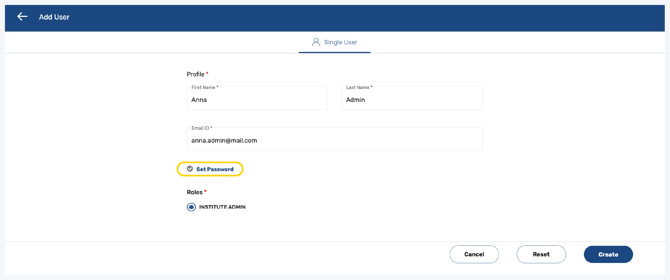
5. Click Set Password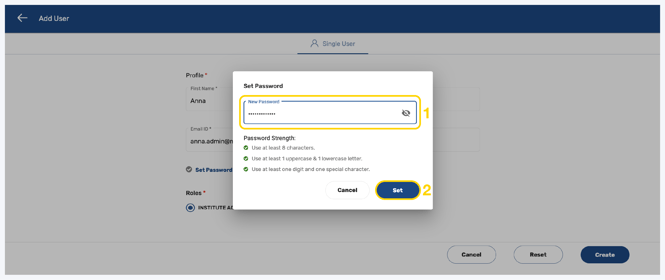
6. Follow the guidelines to create a password and click Set
Important: This is the password the admin will use to login to the Administrator Portal

7. At the bottom right of the page, click Create
Note: You can also Reset or Cancel at any time
8. The new admin will now be created
Editing Admin Accounts
1. Click Admin Center at the top of the page
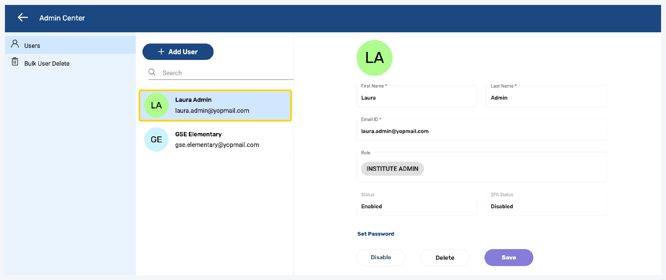
2. Click the admin you would like to edit from the list or by using the search feature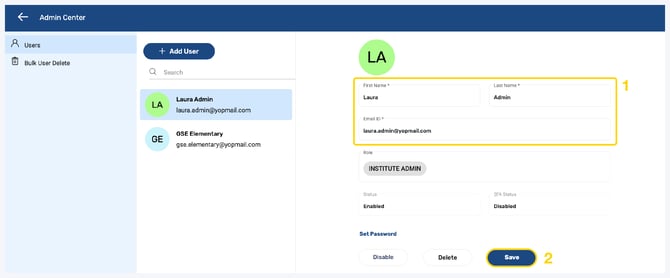
3. You can edit the Admin's First/Last Name or Email ID by updating the text fields then clicking Save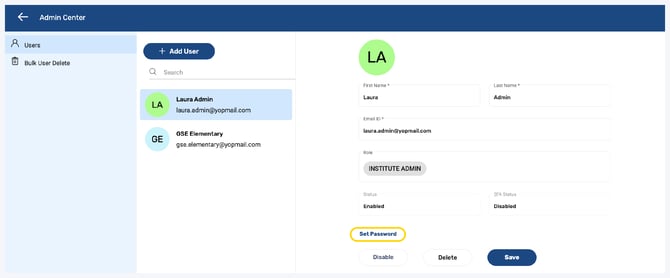
4. To set or change the password for the account, click Set Password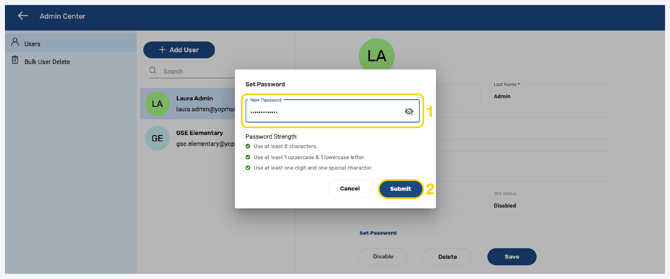
5. Follow the guidelines to create a password and click Submit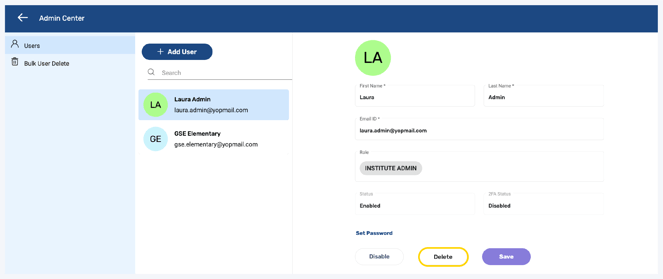
6. The password will be set or changed
Deleting Admin Accounts
Note: Deleting admin accounts is permanent. You may wish to disable the account rather than delete it as this action is reversible.
1. Click Admin Center at the top of the page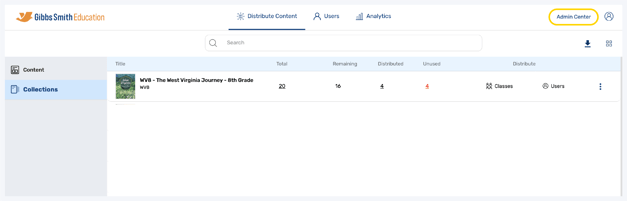
2. Click the admin you would like to disable from the list or by using the search feature
3. Click Delete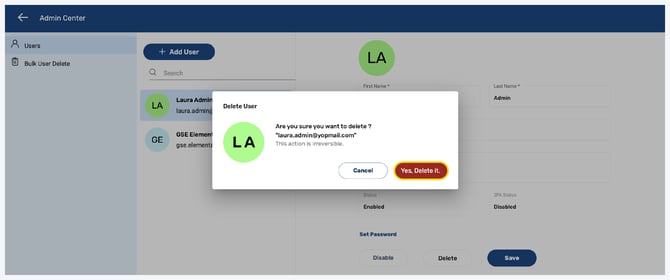
4. Click Yes, Delete it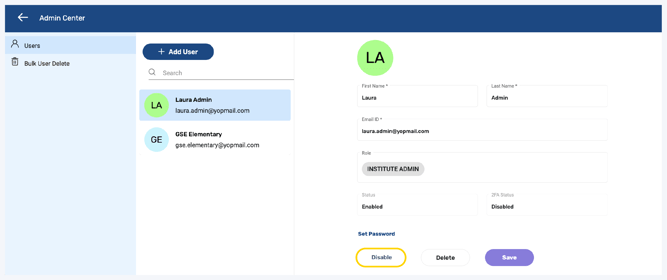
5. The admin will be permanently deleted
Setting or Changing Password for Admin Accounts
1. Click Admin Center at the top of the page
2. Click the admin you would like to set or change the password for from the list or by using the search feature
3. Click Set Password
4. Follow the guidelines to create a password and click Submit
5. The password will be set or changed
Disabling & Enabling Admin Accounts
1. Click Admin Center at the top of the page
2. Click the admin you would like to disable from the list or by using the search feature
3. Click Disable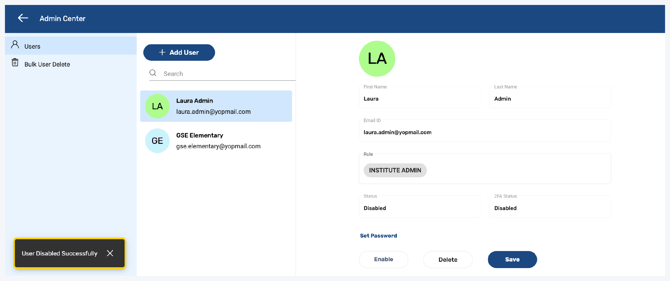
4. The admin will now be disabled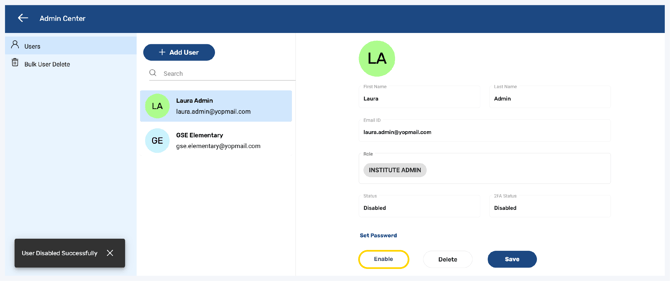
5. To enable the account, click Enable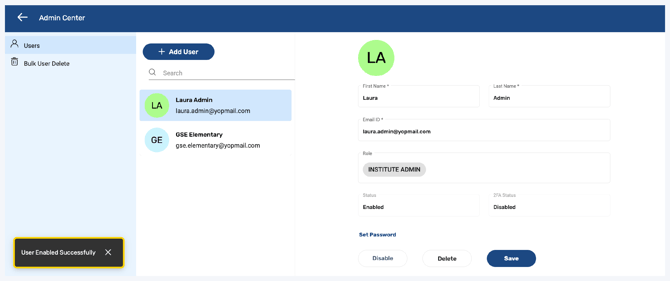
6. The admin will now be enabled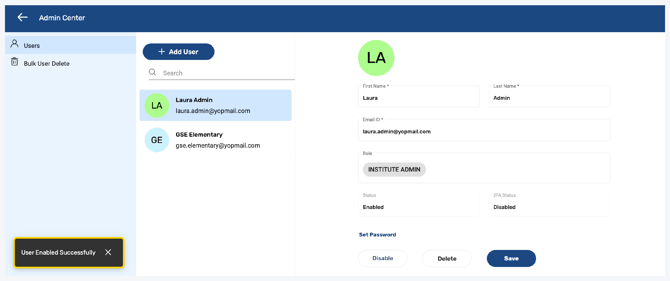
Back to Top
Having trouble?
Try enabling pop-ups and clearing cache and cookies