
Note: Changing password is not advised for users where the school or district manages rostering via automated methods or SSO
Within this article:
• Setting or Changing Password for Individual Users
• Setting or Changing Password for Multiple Users
Setting or Changing Password for Individual Users
1. Click Users at the top of the page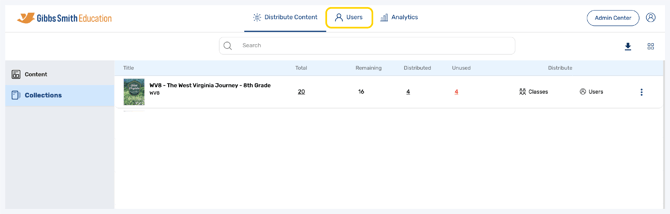
2. (District Accounts Only) Click the School Selection from the top of the page and select which school you would like to manage users and classes for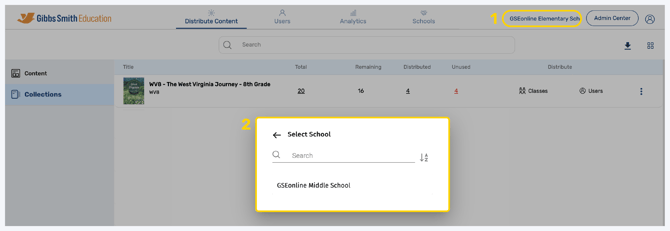
3. Click Users from the left panel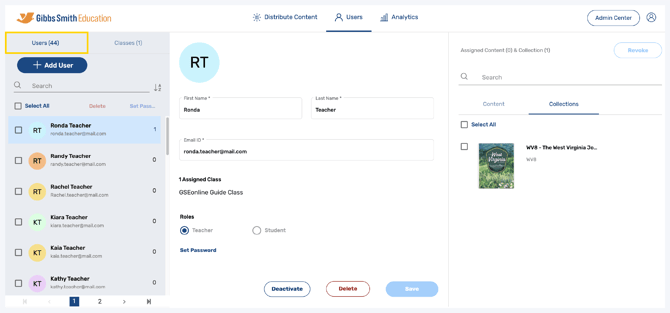
4. Click on the user you would like to set a password for from the list or by using the search feature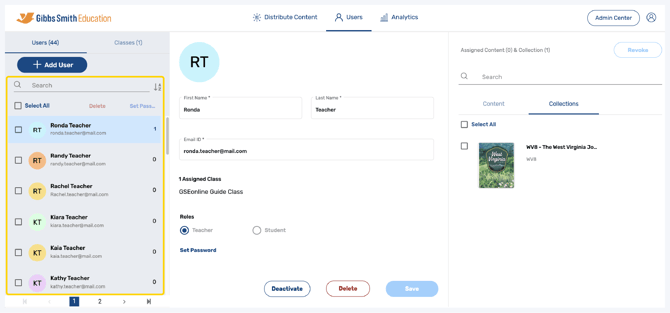
5. Click Set Password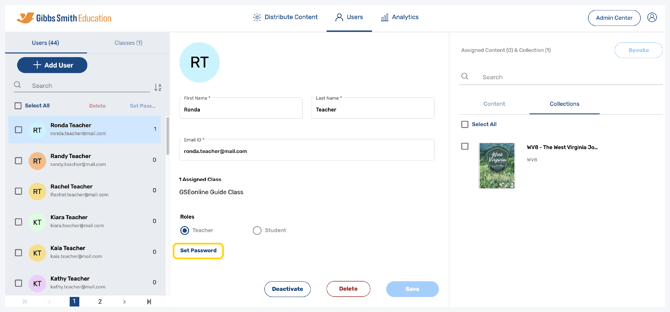
6. Follow the guidelines to create a password, then click Submit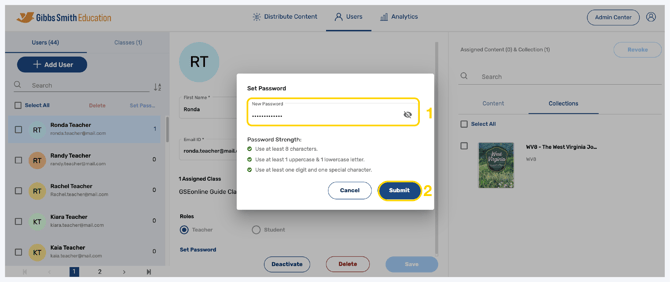
7. User's password will be set/changed
Setting or Changing Password for Multiple Users
1. Click Users at the top of the page
2. (District Accounts Only) Click the School Selection from the top of the page and select which school you would like to manage users and classes for
3. Click Users from the left panel
4. Click the checkboxes next to the user(s) you would like to set a password for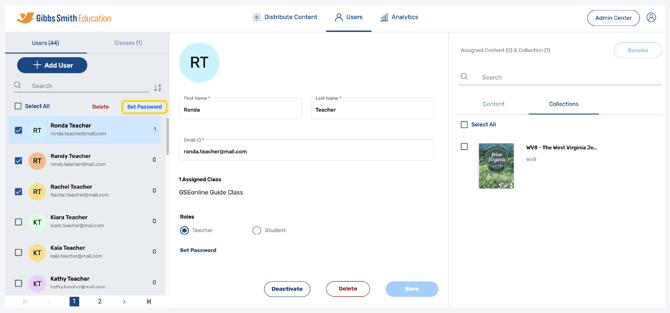
5. Click Set Password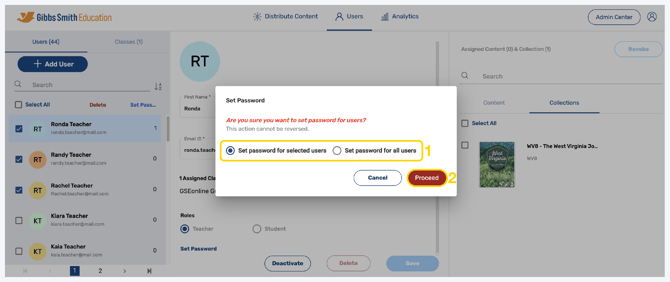
6. Choose whether to set password for select users or all users, then click Proceed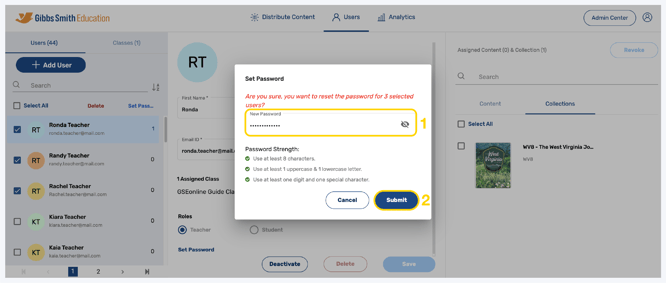
7. Follow the guidelines to create a password and click Submit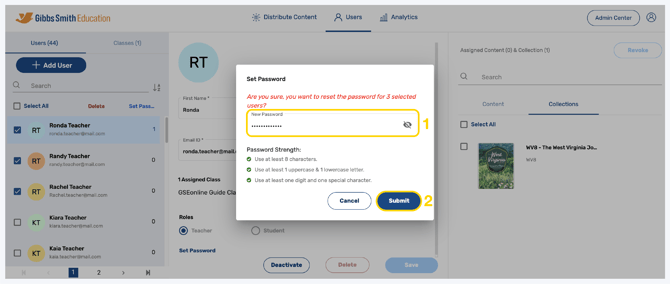
8. The password will now be set for selected or all users
Having trouble?
Try enabling pop-ups and clearing cache and cookies