
Important: When changing a user's email/username, the password must also be reset. You can use the same password as previously set, or choose a new password
1. Click Users at the top of the page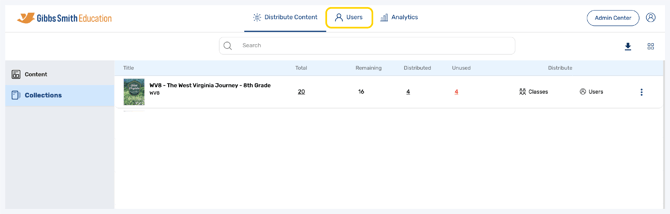
2. (District Accounts Only) Click the School Selection from the top of the page and select which school you would like to manage users and classes for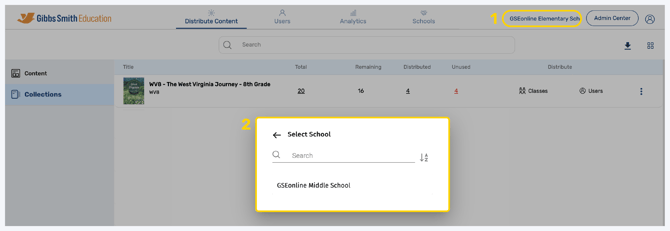
3. In the Users tab, select a user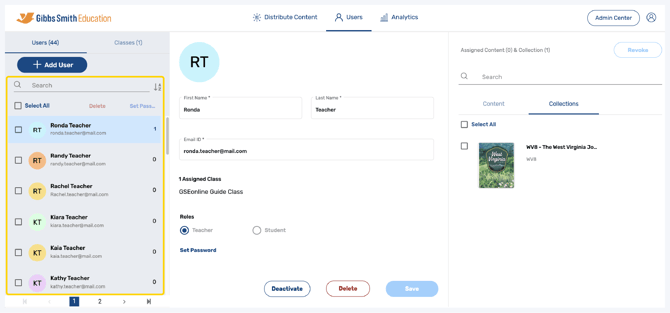
4. Enter a new email for the user
Note: This is the new email the user will use to log in to GSEonline going forward
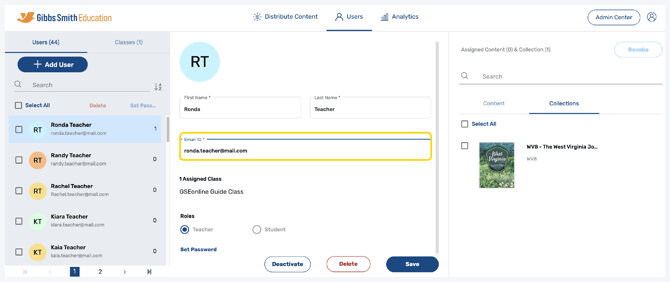
5. Click Save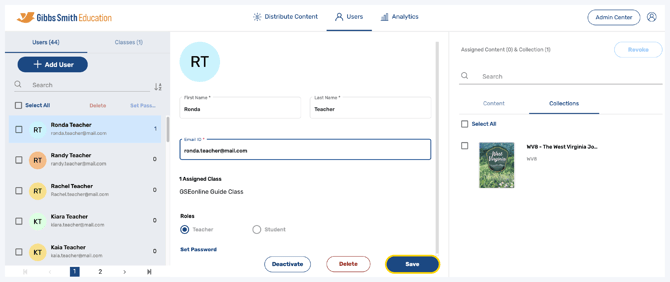
Important: When changing a user's email/username, the password must also be reset. You can use the same password as previously set, or choose a new password
6. Click Set Password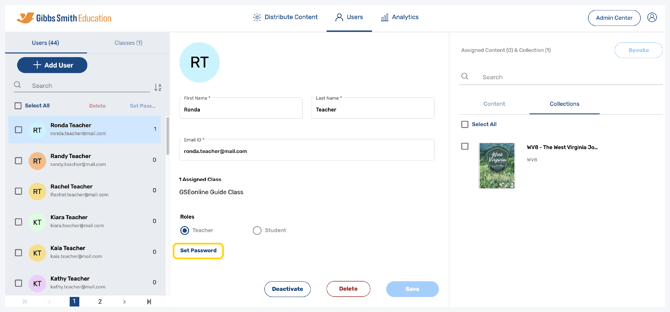
7. Follow the guidelines to create a password, then click Submit
Note: This is the password the user will use to log in to GSEonline
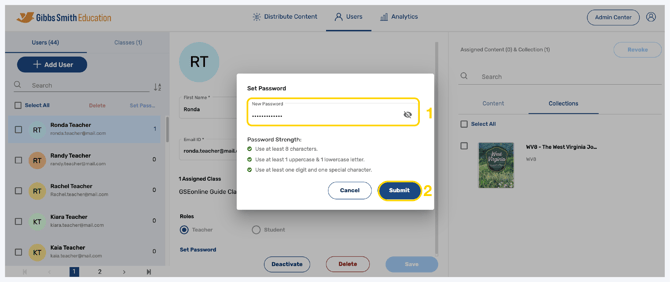
8. Provide new login credentials to the user
9. The user can login to GSEonline by entering their email and new password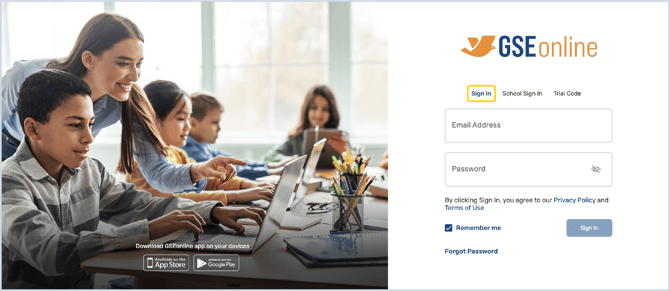
Having trouble?
Try enabling pop-ups and clearing cache and cookies