
If your school uses Clever, ClassLink, OneRoster, or another rostering integration, your classes and students have already been created for you.
Getting started only takes a few minutes.
Step 1: Add Your Course- Sign in to GSE Bookshelf+ using your school's preferred sign-in method.
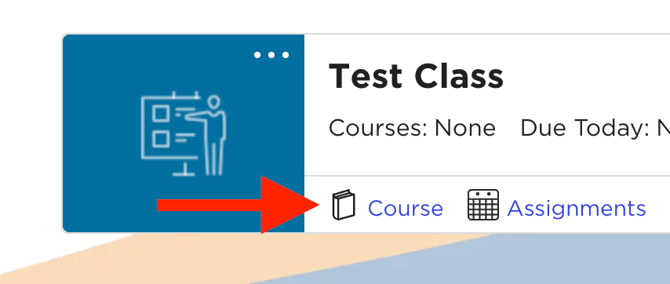
- From the landing page, locate your class.
- Click Course. (next to the Book icon)
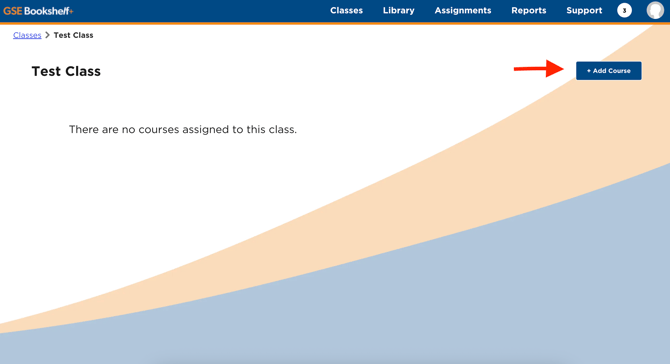
- Select Add Course.
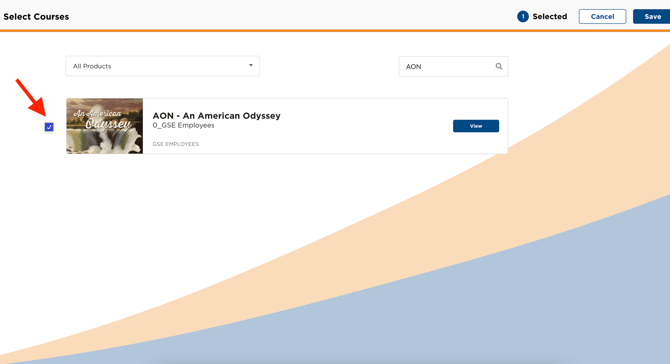
- Choose the textbook you'd like to use.
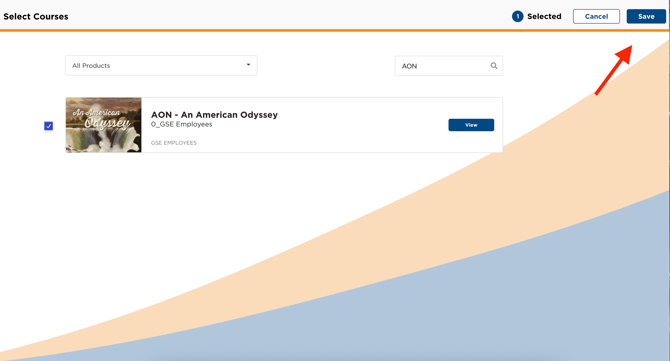
- Click Save.
Your class is now ready to use.
Step 2: Verify Your Roster
Click Roster beneath your class.
If your school is rostered, your students should already appear here. There is no need to create student accounts or share access codes.
If your roster is missing students, contact your district's digital administrator or reach out to Gibbs Smith Education Support.
Step 3: Assign Content (Optional)
Students can always open and read their assigned textbook from My Content after you've added a course.
If you'd like students to focus on a specific chapter or unit, you can create assignments.
To assign content:
- Open your Course.
- Select the chapter or unit you'd like to assign.
- Choose Student Assignments.
- Click Assign.
- Select your class (or individual students).
- Choose the availability dates.
- Click Assign.
Assignments help organize student work, but they are not required for students to access the textbook.
What Students See
Once you've added your course:
- Students can access the textbook from My Content.
- Students can immediately begin reading the book.
- Any assignments you create will also appear on their home page.
Good to know: Students do not need an assignment to read the book. Assignments are simply a way to direct students to specific chapters or activities.
Frequently Asked Questions
Do I need to invite my students?
No. If your school is rostered through Clever, ClassLink, OneRoster, or another supported rostering method, your students are automatically added to your class.
Do I need to share an access code?
No. Access codes are only used for self-registration schools.
What if my roster is incorrect?
If students are missing or enrolled in the wrong class, contact your school's digital administrator first. Rosters come directly from your school's rostering system.