Within this article:
• Digital Access
• Navigating GSE Bookshelf+
• Selecting & Switching Roles
• Schools Page
• Users Page
• Products Page
• Classes Page
• Reports Page
• Profile
Digital Access
During onboarding, District Admins will receive an invitation link in their email inbox to create an account.
District Admins can view and manage all schools, classes, and users within the district.
Navigating GSE Bookshelf+
Selecting & Switching Roles
When you login to your account, if you have multiple roles, you will first select which role you want to act as.
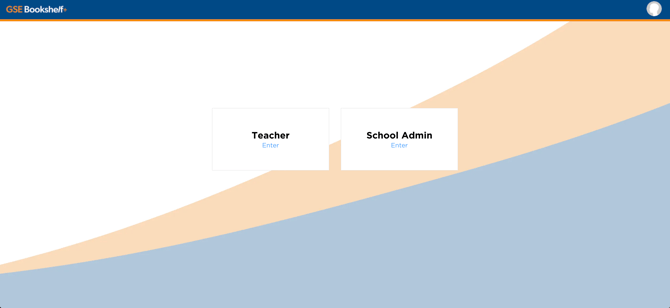
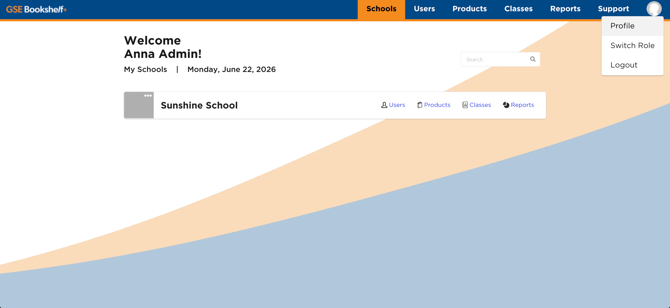
You can easily switch roles from your profile at any time.
Schools Page
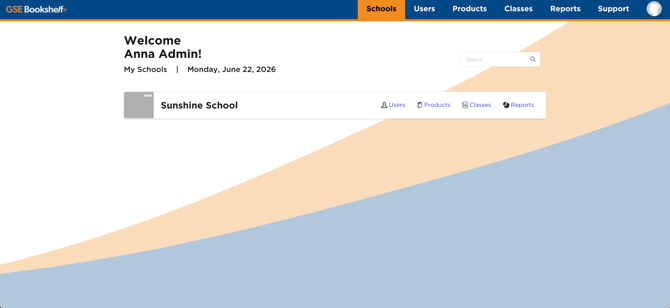
As a District Admin, the first page you will see is the Schools page. This page lists all the schools in your district.
For each school, you can view and manage Users, Products, Classes, and Reports.
Users Page
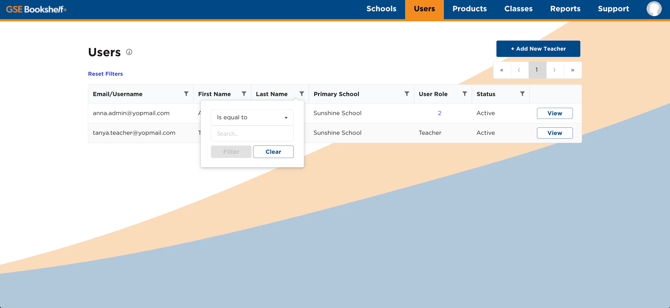
On the Users page, you can view and manage users within your district.
Filter results to quickly find what you are looking for.
Add teachers by clicking + Add New Teacher or by sharing the Teacher Registration Code.
Click View to add users to existing classes or create a new class.
Products Page
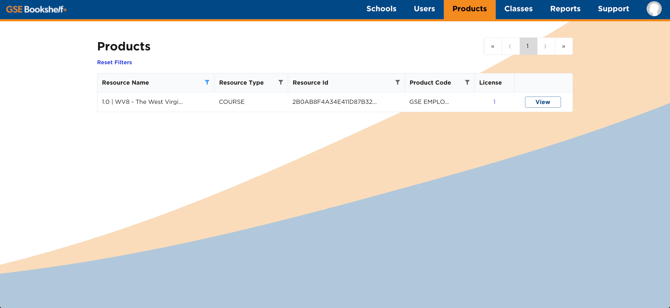
On the Products page, you can view your available products.
Filter results to quickly find what you are looking for.
Click View to explore the content.
Classes Page
On the Classes page, you can view all classes within your district.
Filter results to quickly find what you are looking for.
You can manage classes by selecting Accommodations, Roster, Settings, or Reports.
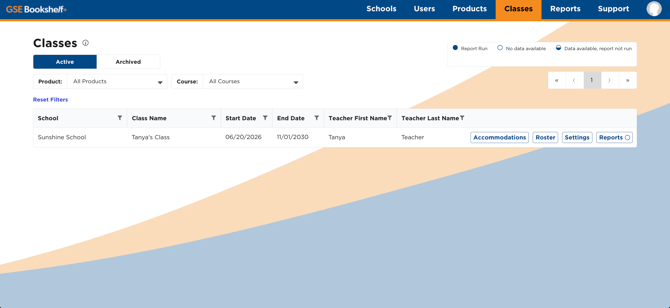
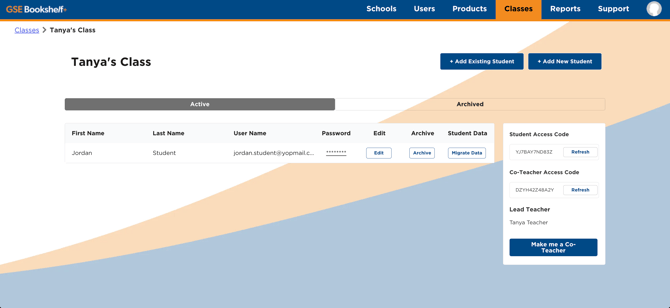
If you would like to view, add, remove, or edit users in a class, select Roster.
From here, you can add users manually or provide an access code which they can use to sign up themselves.
Reports Page
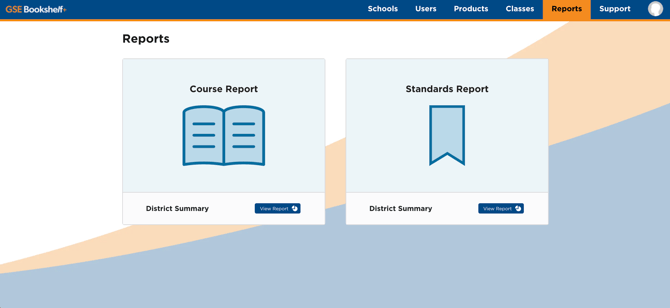
On the Reports page, you can view course data and track student performance.
Profile
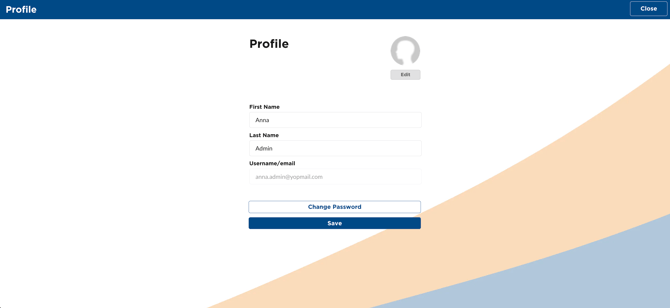
When you hover over the profile icon, you will find options to open your Profile, Switch Roles, and Logout.
From your Profile, you can edit your name, profile photo, or change your password.