If you already have a class in GSE Bookshelf+, you can connect it to an existing Google Classroom.
Connect Your ClassNote: Google Classroom integration does not support Google Single Sign-On (SSO). Users should continue signing in to GSE Bookshelf+ using their existing login credentials.
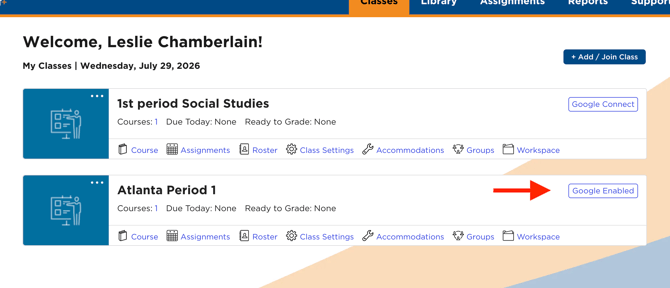
- Go to Classes.
- Locate the class you want to connect.
- Click Google Connect. (on the far right)
- Select the Google Classroom you want to link.
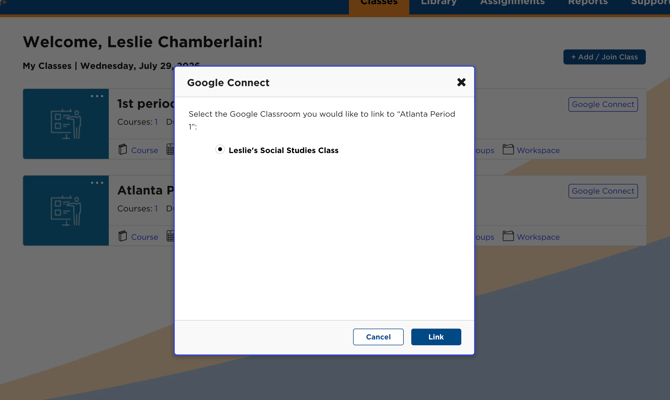
- Click Link.
Once the connection is complete, you'll see a confirmation message showing how many students were successfully connected.
After ConnectingTip: If no students are connected immediately, don't worry. You can click View Roster to review the roster and complete any necessary student matching.
Once your class is linked:
- Your GSE Bookshelf+ class is connected to the selected Google Classroom.
- You can manage student connections from the Roster page.
- The Google Connect button will indicate that the class has been linked.
I don't see my Google Classroom.
- Make sure you're signed in to the correct Google account.
- Verify that you've already created your Google Classroom.
- Refresh the page and try again.
None of my students connected.
- This usually means the student accounts could not be matched automatically.
- Select View Roster to review and complete the student connections if needed.
If you continue to have trouble connecting your Google Classroom, contact Gibbs Smith Education Support (support@gibbs-smith.com) for assistance.